System Setup
Introduction
The System Setup section is where you configure core business elements used throughout the Blockpeer freight management system. This includes creating and managing prices, containers, and services that are used when creating bookings and shipments.
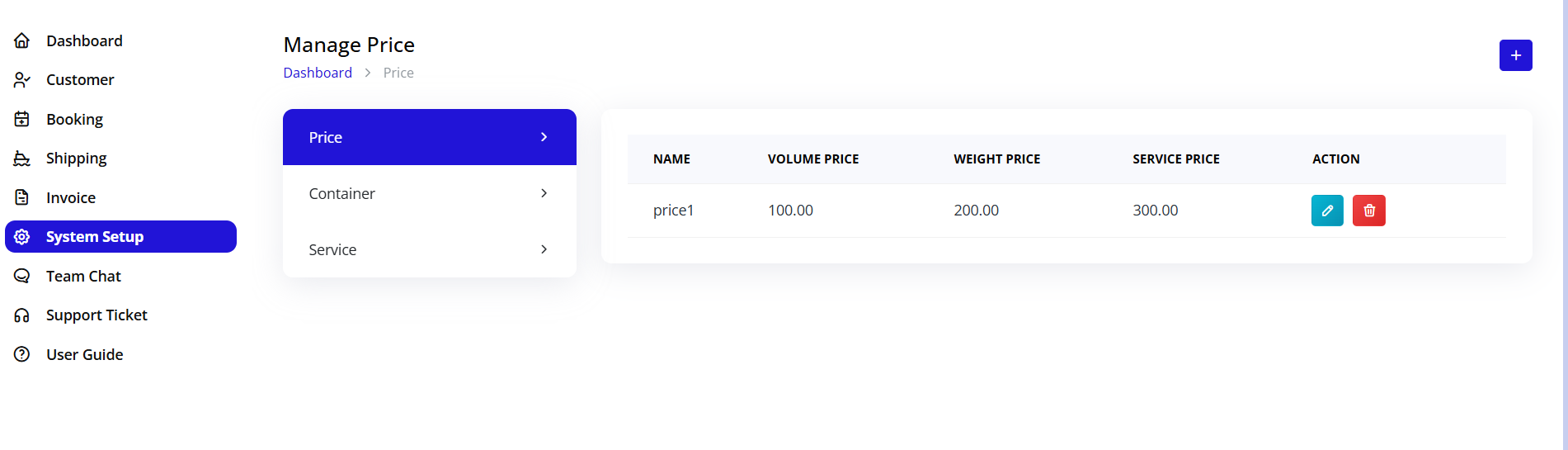
Accessing System Setup
Navigation:
- Log in to your Blockpeer account
- Click System Setup in the left sidebar
- You'll see three main configuration sections:
- Price
- Container
- Service
Price Configuration
What is Price Configuration?
Price configuration defines the pricing structures used to calculate shipping costs based on weight, volume, or other factors. These prices are then selected when filling order details in shipments.
Purpose of Prices
Prices in Blockpeer are used to:
- Calculate order line item costs automatically
- Apply consistent pricing across shipments
- Support different pricing models (weight-based, volume-based)
- Manage multiple price tiers
- Track revenue accurately
Creating a Price
Step 1: Access Price Management
- Click System Setup in left sidebar
- Click Price tab/option
- Click + Create or Add Price button
- Price creation form appears
Step 2: Fill Price Details
The Create Price dialog contains fields:
Name
- Enter name for this price structure
- Examples: "Standard Ocean Freight", "Express Air Rate", "Volume Rate"
- Make it descriptive for easy identification
- Used when selecting price in order details
Volume Price
- Enter price per unit volume (m³ or similar)
- Numeric value (e.g., 50.00)
- Used when billing basis is "Volume"
- Applied to volume measurements
Weight Price
- Enter price per unit weight (kg or similar)
- Numeric value (e.g., 25.00)
- Used when billing basis is "Weight"
- Applied to weight measurements
Service Price
- Enter price for services (if applicable)
- Numeric value (e.g., 100.00)
- Used for service charges
- May not always be needed
Price Creation Form
| Field | Required | Description |
|---|---|---|
| Name | Yes | Descriptive name for price structure |
| Volume Price | Yes | Price per volume unit |
| Weight Price | Yes | Price per weight unit |
| Service Price | No | Price for services (optional) |
Saving Price
- Fill all required fields
- Verify amounts are correct
- Click Create button
- System saves price configuration
- Success message appears
- Price now available for use
Using Prices in Orders
After creating prices:
- When filling Order tab in shipment
- Click "Select Price" dropdown
- Choose from configured prices
- Price automatically calculates charges
- Pricing applied to order items
Managing Prices
Viewing Prices:
- All created prices display in list
- Show name and pricing values
- Quick reference available
Editing Prices:
- Click edit button on price entry
- Modify pricing values
- Update name if needed
- Save changes
Deleting Prices:
- Only delete if not used in active shipments
- Click delete button
- Confirm deletion
- Cannot be recovered if in use
Price Best Practices
Setting Competitive Rates:
- Research market rates
- Consider operational costs
- Add reasonable profit margin
- Review periodically for adjustments
Descriptive Naming:
- Use clear, descriptive names
- Include route or service type
- Make easy to identify purpose
- Avoid generic names
Multiple Price Options:
- Create different prices for different routes
- Different pricing for different service levels
- Weight vs. volume-based options
- Helps flexibility in quoting
Container Configuration
What is Container Configuration?
Containers are the standard shipping containers used to transport cargo. Configuration defines the container types, sizes, and volume calculations available in the system.
Purpose of Containers
Containers in Blockpeer are used to:
- Specify cargo packaging methods
- Link orders to container types
- Calculate volume-based pricing
- Track container quantities
- Organize shipment structure
Types of Containers
Common Container Types:
- 20-foot container (20ft)
- 40-foot container (40ft)
- 40-foot High Cube (40HC)
- Pallets
- Crates
- Custom containers
Creating a Container
Step 1: Access Container Management
- Click System Setup in left sidebar
- Click Container tab/option
- Click + Create or Add Container button
- Container creation form appears
Step 2: Fill Container Details
The Create Container dialog contains fields:
Code
- Auto-generated code (e.g., #CON00001)
- System assigns unique identifier
- Cannot be manually changed
- Used for container identification
Container Number
- Auto-generated number (e.g., #CSN00001)
- System assigns unique identifier
- Cannot be manually changed
- Used for tracking
Status Toggle
- Enable/Disable container availability
- Toggle to activate or deactivate
- Active containers show in dropdowns
- Inactive containers hidden from lists
Name
- Enter container name
- Examples: "20ft Container", "40HC", "Pallet"
- Descriptive and clear
- Used in dropdown selections
Size
- Enter physical dimensions
- Example: "20 feet" or "40 feet"
- Reference dimension for container type
- Used for identification
Size UOM
- Unit of measurement for size
- Examples: "feet", "meters", "inches"
- Specifies measurement unit
- Consistent with industry standards
Volume Price
- Enter price per container volume
- Numeric value (e.g., 100.00)
- Used in pricing calculations
- Different for each container type
Container Creation Form
| Field | Required | Description |
|---|---|---|
| Code | No | Auto-generated code |
| Container Number | No | Auto-generated number |
| Status | Yes | Enable/Disable toggle |
| Name | Yes | Container name/type |
| Size | Yes | Container dimension |
| Size UOM | Yes | Measurement unit |
| Volume Price | Yes | Price per volume |
Saving Container
- Fill all required fields
- Verify name and size information
- Set status to Active
- Enter appropriate volume price
- Click Create button
- System saves container configuration
- Success message appears
- Container now available for use
Using Containers in Shipments
After creating containers:
- When filling Container tab
- Click "Select Container" dropdown
- Choose from configured containers
- Enter quantity needed
- Volume auto-calculates
- Pricing applies based on volume price
Container Management
Viewing Containers:
- All created containers display in list
- Shows name, size, and pricing
- Status indicator (Active/Inactive)
- Quick reference view
Editing Containers:
- Click edit button on container
- Modify size, name, or pricing
- Update status if needed
- Save changes
Deactivating Containers:
- Use Status toggle to disable
- Inactive containers hidden from dropdowns
- Existing shipments not affected
- Can be reactivated anytime
Deleting Containers:
- Remove if no longer needed
- Cannot delete if in active use
- Archived for historical records
- Contact support if deletion issues
Container Best Practices
Accurate Sizing:
- Verify actual container dimensions
- Use industry standard sizes
- Be consistent with naming
- Document size clearly
Competitive Pricing:
- Calculate volume pricing accurately
- Match container volume to price
- Research market rates
- Update periodically
Clear Naming:
- Use industry-standard names
- Include size in name
- Avoid abbreviations if unclear
- Make easy to identify
Status Management:
- Keep active containers available
- Deactivate obsolete containers
- Don't delete - deactivate instead
- Maintain historical data
Service Configuration
What is Service Configuration?
Services are additional charges or handling services offered beyond basic transportation. Configuration defines the available services that can be added to shipments.
Purpose of Services
Services in Blockpeer are used to:
- Offer add-on services to customers
- Charge for specialized handling
- Include additional fees
- Organize service charges
- Track service revenue
Types of Services
Common Services Include:
- Container handling and storage
- Documentation and paperwork fees
- Customs clearance assistance
- Insurance coverage
- Quality inspection
- Packaging and labeling
- Warehousing
- Pickup and delivery
Creating a Service
Step 1: Access Service Management
- Click System Setup in left sidebar
- Click Service tab/option
- Click + Create or Add Service button
- Service creation form appears
Step 2: Fill Service Details
The Create Service dialog contains fields:
Name
- Enter service name
- Examples: "Container Handling", "Documentation Fee", "Insurance"
- Descriptive and clear
- Used in service selection dropdown
Cost Price
- Enter cost to provide service
- Numeric value (e.g., 50.00)
- Your internal cost
- Used for profit calculation
Sale Price
- Enter price charged to customer
- Numeric value (e.g., 100.00)
- Price billed to customer
- Should be higher than cost
Service Creation Form
| Field | Required | Description |
|---|---|---|
| Name | Yes | Service name/description |
| Cost Price | Yes | Cost to provide service |
| Sale Price | Yes | Price charged to customer |
Saving Service
- Fill all required fields
- Verify cost and sale prices
- Ensure sale price > cost price
- Click Create button
- System saves service configuration
- Success message appears
- Service now available for use
Using Services in Shipments
After creating services:
- When filling Services tab in shipment
- Click + Add Service button
- Click "Select Service" dropdown
- Choose from configured services
- Enter quantity needed
- Cost and sale price pre-populated
- Total automatically calculated
Service Management
Viewing Services:
- All created services display in list
- Shows name and pricing
- Quick reference for cost and revenue
- Easy to identify available services
Editing Services:
- Click edit button on service
- Modify name or pricing
- Update cost or sale price
- Save changes
Deactivating Services:
- Mark as inactive if no longer offered
- Existing shipments not affected
- Can be reactivated anytime
- Maintains historical data
Deleting Services:
- Remove if never used
- Cannot delete if in active use
- Archive data before deletion
- Use deactivation instead
Service Best Practices
Accurate Pricing:
- Calculate true costs accurately
- Set competitive sale prices
- Profit margin should be reasonable
- Monitor market rates
Clear Descriptions:
- Use descriptive service names
- Avoid vague or generic names
- Include what service includes
- Clear about service scope
Profit Margin:
- Ensure sale price covers cost
- Add reasonable profit margin
- Don't overprice - stay competitive
- Review periodically
Service Organization:
- Group similar services logically
- Use consistent naming convention
- Update descriptions as needed
- Keep list current and relevant
System Setup Best Practices
General Organization
Naming Conventions:
- Use consistent, descriptive names
- Make entries easy to identify
- Avoid abbreviations unless standard
- Clear about content/purpose
Regular Reviews:
- Review pricing quarterly
- Update for market changes
- Remove unused configurations
- Keep system clean and current
Backup and Documentation:
- Keep records of all configurations
- Document pricing rationale
- Save previous versions
- Maintain change log
Configuration Workflow
Before Creating Shipments:
- Configure all necessary prices
- Set up all container types
- Define available services
- Review all configurations
- Test with sample data
When Adding New Offerings:
- Create new price if different rate
- Create new container if different type
- Create new service if different offering
- Test in sample shipment
- Communicate changes to team
Pricing Strategy
Volume-Based Pricing:
- Set volume prices competitively
- Consider container utilization
- Review against market rates
- Update periodically
Weight-Based Pricing:
- Set weight prices realistically
- Consider fuel and overhead
- Maintain profit margins
- Test calculations before use
Service Pricing:
- Calculate true costs of services
- Add margin for profitability
- Price competitively
- Highlight value to customers
Quick Reference
Price Setup Steps
- Click System Setup → Price
- Click Create Price
- Enter Name, Volume Price, Weight Price, Service Price
- Click Create
- Price ready for use in orders
Container Setup Steps
- Click System Setup → Container
- Click Create Container
- Enter Name, Size, Size UOM, Volume Price
- Enable Status toggle
- Click Create
- Container ready for use in shipments
Service Setup Steps
- Click System Setup → Service
- Click Create Service
- Enter Name, Cost Price, Sale Price
- Click Create
- Service ready for use in shipments
Summary
System Setup is the foundation of your Blockpeer configuration. By properly setting up prices, containers, and services, you ensure consistent and accurate pricing throughout your shipping operations. Take time to configure these elements correctly from the start, and maintain them regularly as your business evolves. Proper system setup leads to accurate invoicing, better profitability tracking, and more professional operations.
Need Help?
For questions about:
- Using prices in shipments: See Shipping Operations
- Using containers in shipments: See Shipping Operations
- Using services in shipments: See Shipping Operations
- Creating shipments: See Shipping Operations
- Creating bookings: See Booking Management