Invoice Management
Introduction
The Invoice Management section handles all billing operations after shipments are accepted and converted. This includes viewing invoice details, tracking payment status, managing invoices, and monitoring outstanding amounts due.

Accessing Invoice Management
Navigation:
- Log in to your Blockpeer account
- Click Invoice in the left sidebar
- The invoice list page displays
Invoice List Overview
Understanding the Invoice Table
The invoice list displays all generated invoices with the following information:
| Column | Description |
|---|---|
| NO | Sequential number |
| INVOICE | Invoice reference number (e.g., #FRE-INVO00002) |
| CUSTOMER | Customer name or organization |
| ISSUE DATE | Date invoice was created/issued |
| DUE DATE | Payment due date |
| DUE AMOUNT | Total amount owed by customer |
| STATUS | Payment status (Unpaid, Paid) |
| ACTION | Available actions for invoice |
Invoice Status Badges
- Unpaid (Red): Invoice issued, payment not received
- Paid (Green): Payment received from customer
Table Features
Search Functionality
- Search box in top right corner
- Search by invoice number, customer name, or date range
- Real-time filtering of results
Pagination
- "Entries Per Page" dropdown (top left)
- Options: 10, 25, 50, 100 entries
- Navigate between pages using arrows
Export Options (Top right)
- Download (Cyan button): Export invoice list
- PDF (Pink button): Generate PDF report
- Print (Orange button): Print invoice list
Understanding Invoices
What is an Invoice?
An invoice is a document issued to customers requesting payment for services rendered or goods shipped. In the Blockpeer system, invoices are automatically generated from accepted and completed shipments.
Key Information on Invoice:
- Invoice number (unique identifier)
- Shipment reference (link to original shipment)
- Customer billing information
- Itemized list of charges
- Total amount due
- Payment due date
- Current payment status
How Invoices are Created
Invoices are not manually created. Instead, they are automatically generated when you convert a shipping record to an invoice.
Prerequisites for Invoice Creation:
- Shipment must be in "Accepted" status
- All shipping tabs completed (Main Carriage, Container, Order, Services, Route)
- All customer and pricing information verified
- All eBL steps completed and signed
- Shipping status shows "Ready to Invoice"
Automatic Process:
- Click "Convert to Invoice" button
- System automatically creates invoice
- All shipping data transfers to invoice
- Invoice number auto-generated
- Invoice appears in this section
- Status set to "Unpaid" initially
Viewing Invoice Details
Opening an Invoice
Method 1: Click Invoice Number
- Locate invoice in the list
- Click on invoice reference number (e.g., #FRE-INVO00002)
- Invoice detail page opens
Method 2: Action Button
- Locate invoice in the list
- Click icon in ACTION column
- Invoice detail page opens
Invoice Detail Page
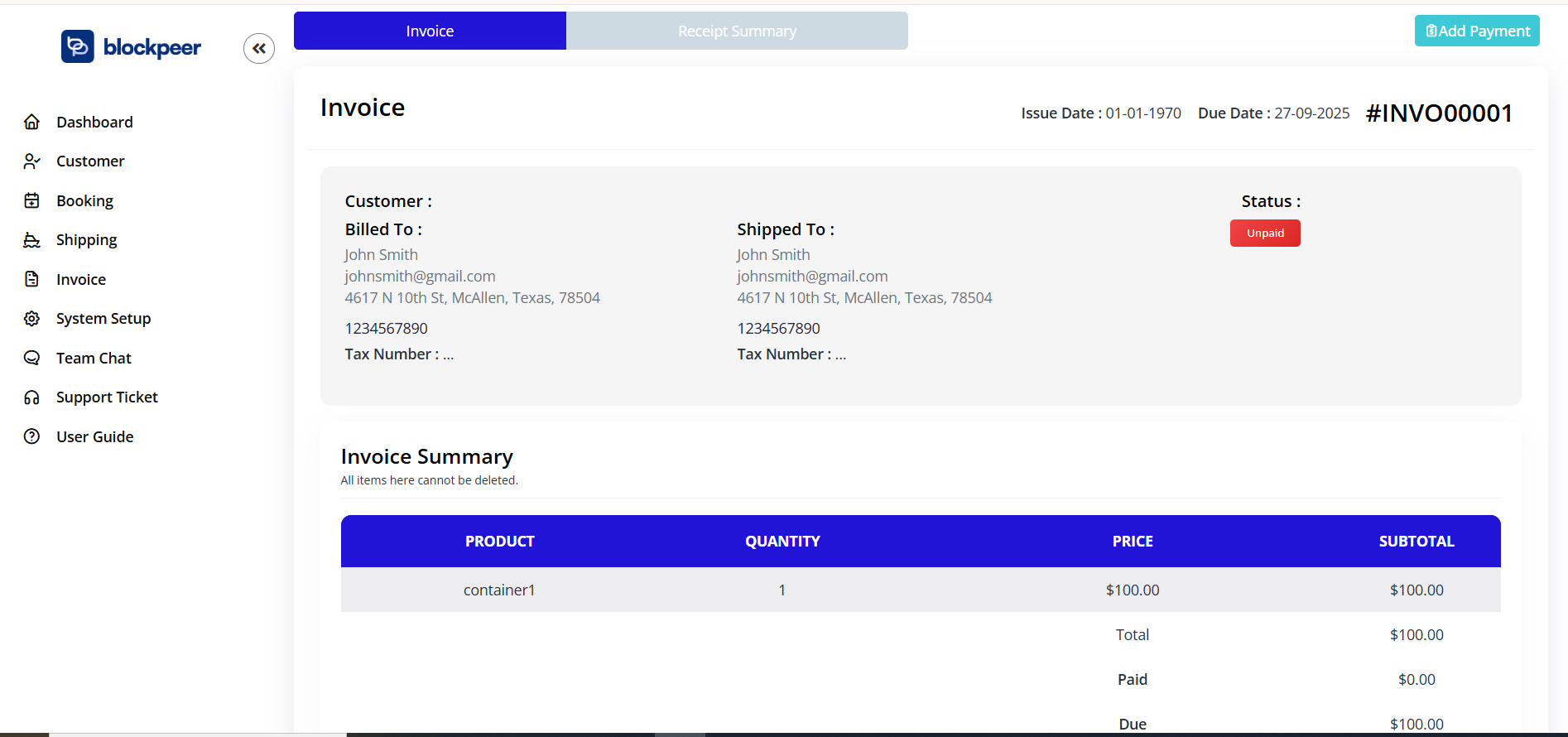
The invoice detail page contains comprehensive information organized in sections:
Header Information
- Invoice number (top right)
- Two tabs: Invoice | Receipt Summary
- Add Payment button (for recording payments)
Invoice Section Shows:
Customer Information Block:
- Customer name
- Billed To: Customer name, email, address, tax number
- Shipped To: Destination name, email, address, tax number
- Status: Paid/Unpaid badge
Invoice Details:
- Issue Date: Date invoice was created
- Due Date: Payment deadline
- Invoice Number: Unique identifier
Invoice Summary Table
The table displays all items included in the invoice:
| Column | Description |
|---|---|
| PRODUCT | Item description or container type |
| QUANTITY | Number of units |
| PRICE | Price per unit |
| SUBTOTAL | Quantity × Price |
Invoice Totals Section (Bottom Right):
- Subtotal: Sum of all items
- Total: Overall invoice amount
- Paid: Amount received so far
- Due: Remaining balance owed
Receipt Summary Tab
The Receipt Summary tab shows payment history:
- All payments received
- Payment dates and amounts
- Payment methods used
- Outstanding balance
Managing Invoice Payments
Recording Payment
When a customer makes a payment, you need to record it in the system.
Steps to Add Payment:
-
Open invoice detail page
-
Click Add Payment button (top right, cyan button)
-
Payment form appears with fields:
- Payment Amount
- Payment Date
- Payment Method (if configured)
- Notes or Reference
-
Enter payment amount received
-
Enter date payment was received
-
Select payment method (if available)
-
Add any notes (optional)
-
Click Save or Confirm
-
System updates invoice status
After Payment Recording:
- Invoice status updates to Paid (if fully paid)
- Paid amount increases
- Due amount decreases
- Receipt Summary tab updated
- Payment date and method recorded
Partial Payments
If customer pays partial amount:
- Enter partial payment amount
- System updates amounts
- Invoice remains "Unpaid" status
- Due balance shows remaining amount
- Can record additional payments later
Full Payment
When payment received equals total invoice amount:
- Invoice status changes to "Paid" (green badge)
- Due amount shows $0.00
- Payment fully recorded
- Customer account settled for this invoice
Invoice Status Tracking
Invoice Status Meanings
| Status | Meaning | Action Required |
|---|---|---|
| Unpaid | Invoice issued, no payment received | Track and follow up payment |
| Paid | Full payment received | No action needed |
| Partial | Some payment received | Track remaining balance |
Tracking Unpaid Invoices
Identifying Overdue Invoices:
- Compare Due Date with current date
- Invoices past due date need follow-up
- Note customers with multiple overdue invoices
Follow-up Actions:
- Send payment reminder to customer
- Check communication for payment issues
- Offer payment plans if needed
- Escalate if significantly overdue
Paid Invoices
When Invoice is Paid:
- Status automatically updates to "Paid"
- No further action required
- Closed for billing purposes
- Available for reporting and analysis
Invoice Operations
Common Invoice Actions
View Invoice
- Click invoice number to open detail page
- View all charges and items
- Check payment status
- Review customer information
Download Invoice
- Print button in list view
- Generate PDF for sharing with customer
- Save for records and accounting
- Email to customer if needed
Track Payment
- Check Invoice Status column
- View payment amounts in detail
- Monitor outstanding balances
- Add payments as received
Search Invoices
- Use search box to find invoice number
- Search by customer name
- Search by date range
- Filter by status (Paid/Unpaid)
Correcting Invoice Errors
If Invoice Contains Errors:
Note: Invoices are linked to shipments. Corrections should typically be made in the original shipment if possible. However, if you need to address an invoice issue:
- Document the error found
- Check if error is in original shipment data
- If shipment error: correct shipment first
- If invoice-specific: contact support or consider credit memo
- Create new corrected invoice if necessary
Invoice Reports and Analytics
Using Invoice Data
Invoice List Provides:
- Complete invoice summary
- Payment status overview
- Outstanding amounts
- Customer payment patterns
Exporting Invoice Data:
Download Option:
- Export invoice list as file
- Use for spreadsheet analysis
- Import to accounting software
- Share with accounting team
PDF Report:
- Generate professional PDF report
- Print for records
- Share with management
- Include in financial reports
Print Function:
- Print invoice list directly
- Create physical records
- Share hardcopies if needed
- Archive for compliance
Key Metrics from Invoices
Outstanding Receivables:
- Total of all Unpaid invoices
- Sum of Due amounts
- Identifies cash flow needs
Payment Performance:
- Track customer payment speed
- Identify slow-paying customers
- Monitor payment terms compliance
- Plan cash flow accordingly
Invoice Volume:
- Number of invoices created
- Growth trends over time
- Revenue generation tracking
- Operational performance
Invoice and Shipping Connection
How They Relate
Shipping to Invoice Flow:
Shipment Created
        ↓
Shipment Accepted
        ↓
Convert to Invoice
        ↓
Invoice Created
        ↓
Track Payment
What Transfers: When you convert a shipment to invoice, the system transfers:
- All customer information
- All container and order details
- All service charges
- All route costs
- Total calculated amounts
- Shipment reference link
Invoice Status in Shipping:
- After conversion, shipping shows "Invoiced"
- Cannot convert same shipment twice
- Link maintained between documents
- Both remain for records
Best Practices for Invoice Management
Accuracy and Verification
Before Converting to Invoice:
- Verify all shipment information is accurate
- Confirm all pricing is correct
- Review totals and calculations
- Ensure customer details are complete
After Converting to Invoice:
- Review invoice data immediately
- Compare with shipment details
- Verify no data was corrupted
- Confirm amounts are correct
Payment Processing
Timely Recording:
- Record payments within 1-2 business days
- Don't wait to accumulate payments
- Keep Payment up-to-date with current status
- Update customers on receipt
Clear Documentation:
- Note payment method received
- Record payment date accurately
- Add reference number if provided
- Keep notes for accounting
Follow-up on Unpaid Invoices:
- Monitor due dates regularly
- Send reminders 3-5 days before due
- Follow up again if overdue
- Escalate if significantly late (10+ days)
Customer Communication
Professional Approach:
- Send invoices promptly after shipment acceptance
- Include clear payment instructions
- Specify due date and payment terms
- Provide multiple payment methods if possible
Payment Reminders:
- Send friendly reminder before due date
- Follow up immediately if overdue
- Remain professional and courteous
- Offer assistance with payment issues
Record Keeping:
- Maintain copies of all invoices
- Keep payment records with invoices
- Document all customer communications
- Archive for compliance and audit
Common Invoice Issues
| Issue | Cause | Solution |
|---|---|---|
| Invoice won't generate | Shipment not accepted or tabs incomplete | Complete shipment acceptance and all tabs first |
| Wrong amounts on invoice | Pricing not configured correctly | Verify pricing setup in System Setup section |
| Customer not receiving invoice | Invoice not sent by email | Send invoice via email or provide link manually |
| Can't record payment | Status not allowing | Ensure invoice is in Unpaid status first |
| Missing invoice details | Shipment data not filled | Verify all shipment tabs completed before conversion |
| Duplicate invoice | Same shipment converted twice | Check shipment status - convert only once per shipment |
Invoice Payment Terms
Common Payment Terms
Net 30
- Payment due 30 days from invoice date
- Most common for business invoices
- Provides time for customer approval
Net 15
- Payment due 15 days from invoice date
- For faster payment collection
- Used for high-value shipments
Due Upon Receipt
- Payment immediately upon receiving invoice
- For cash sales
- Zero payment timeframe
End of Month (EOM)
- Payment due by end of following month
- Used for regular business relationships
- Provides monthly consolidation
Setting Payment Terms
Payment terms are typically configured in:
- Customer management settings
- Invoice template settings
- System Setup section
- Individual invoice modification (if allowed)
Archive and Compliance
Storing Invoices
Digital Storage:
- All invoices stored digitally in system
- Automatic backup by Blockpeer
- Secure storage with encryption
- Available for download anytime
Retention Requirements:
- Keep invoices for accounting period
- Maintain for tax purposes (typically 3-7 years)
- Store payment records with invoices
- Archive annually for compliance
Access Control:
- Only authorized users can view
- Permission-based access
- Download and export options available
- Audit trails maintained
Compliance and Auditing
Compliance Features:
- Complete invoice history maintained
- Payment records documented
- Timestamps on all actions
- Audit trail available
For Audits:
- Export invoice data as needed
- Provide payment records
- Show correspondence history
- Demonstrate payment processing
Quick Reference: Invoice Status Flow
Shipment Accepted
        ↓
Convert to Invoice
        ↓
Invoice Created (Status: Unpaid)
        ↓
Send to Customer
        ↓
Payment Received
        ↓
Record Payment
        ↓
Invoice Updated (Status: Paid)
        ↓
Task Complete
Summary
Invoice Management in Blockpeer automates the billing process by converting completed shipments into professional invoices. The system tracks payment status, simplifies payment recording, and provides comprehensive reporting. By following best practices for accuracy, timely payment processing, and clear customer communication, you can optimize your billing operations and maintain healthy cash flow. Regular monitoring of outstanding invoices and prompt follow-up on payments ensure efficient business operations.
Need Help?
For questions about:
- Creating invoices: See Shipping Operations
- Shipment management: See Shipping Operations
- Customer information: See Customer Management
- System configuration: See System Setup Documentation