Getting Started
Initial Setup
Step 1: Access BlockPeer Books
- Log in to your BlockPeer account
- From the module selection screen, click on BlockPeer Books
- You'll be taken to the Books dashboard
Step 2: Setup Your Account

- Navigate to Sales section
- Click + Accounting Setup
- Enter account details:
- Setup your sales and purchase category
- Setup your Taxes
- Account Type (Asset, Liability, Income, Expense, Equity)
- Currency (Fiat or Digital Asset)
- Click Save
Step 3: Add Wallets
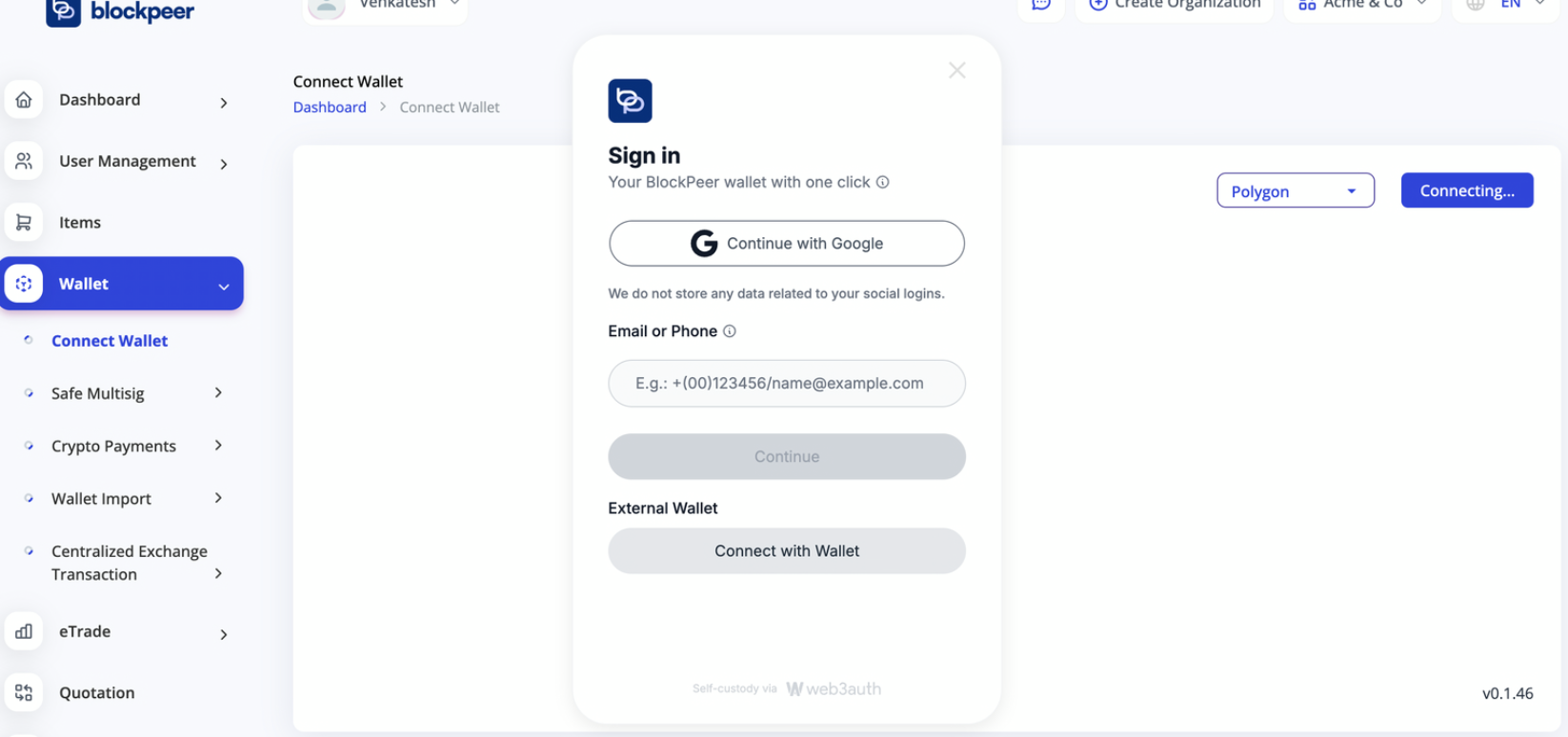
- Go to Wallets
- Click + Connect Wallet
- Choose wallet type:
- MPC Wallet (email-based)
- Multisig Wallet
- Exchange Integration
- Follow the connection wizard
Step 4: Record Transactions
- Go to Transactions
- Click + New Transaction
- Enter transaction details and submit
- System auto-records double-entry accounting
Best Practices
- Organize accounts by business function
- Use consistent naming conventions
- Regularly reconcile wallet balances
- Review monthly reports for compliance
Troubleshooting
Q: My wallet isn't connecting A: Ensure your wallet address is correct and you have permissions to access it.
Q: Where can I find my reports? A: Reports are available under the Reports tab in the main menu.