Managing Accounts in BlockPeer Books
Understanding Account Types
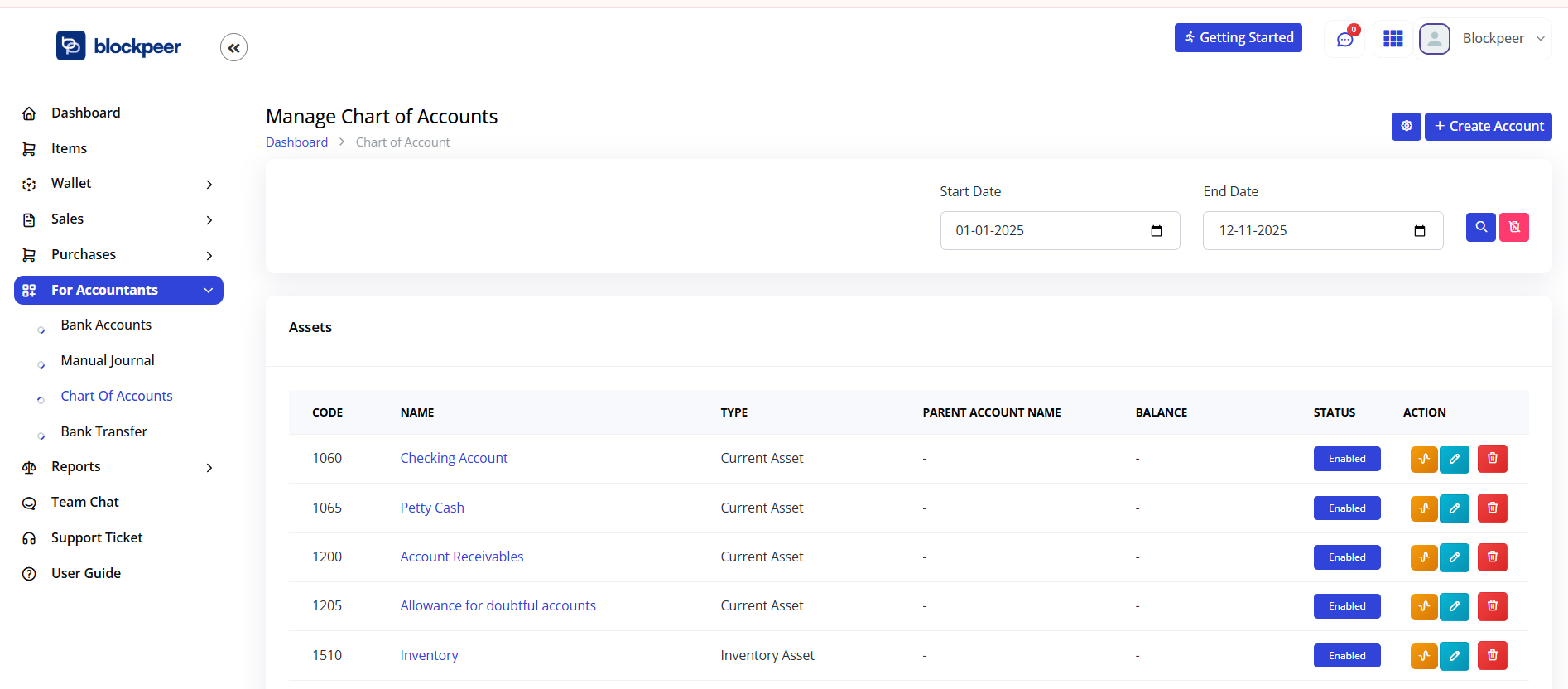
Asset Accounts
Assets are things your business owns with value.
Current Assets (Can convert to cash within 1 year)
- Cash
- Bank accounts
- Wallets (crypto and fiat)
- Receivables (money owed to you)
- Inventory
Fixed Assets (Long-term value)
- Equipment
- Property
- Vehicles
- Furniture
- Investments
Liability Accounts
Liabilities are amounts you owe.
Current Liabilities (Due within 1 year)
- Credit card balances
- Accounts payable
- Short-term loans
- Deferred revenue
Long-term Liabilities
- Mortgages
- Long-term loans
- Bonds
Equity Accounts
Equity is what's left after liabilities.
- Contributed capital
- Retained earnings
- Dividends paid
- Common stock
Income Accounts
Money coming in.
- Sales revenue
- Service revenue
- Interest income
- Rental income
- Other income
Expense Accounts
Money going out.
- Cost of goods sold
- Salaries
- Rent
- Utilities
- Office supplies
- Travel
- Professional fees
Creating New Accounts
Step 1: Navigate to Chart of Accounts
- Go to Accounting → Chart of Accounts
- See all existing accounts organized by type
- Click + Add Account button
Step 2: Enter Account Information
-
Account Name: Clear, descriptive name
- Good: "Ethereum Holdings", "Client Retainers", "Monthly Office Rent"
- Bad: "Misc", "Account 1", "Various"
-
Account Type: Select from list
- Asset, Liability, Equity, Income, Expense
- Sub-type will appear (e.g., Asset → Current Asset)
-
Account Number (optional)
- Use numbering system: 1000-1999 (Assets), 2000-2999 (Liabilities), etc.
- Helps organize large charts of accounts
- Must be unique
-
Description: Optional explanation
- Example: "Operational wallet for receiving client payments"
-
Currency:
- Default uses organization currency
- Can override for multi-currency accounts
- Example: If organization default is USD, this account can be in EUR
-
Parent Account (optional)
- If creating sub-account, select parent
- Example: Parent "Crypto Holdings" → Sub "Bitcoin Holdings"
-
Status: Active or Inactive
Step 3: Set Up Account Parameters
Depending on account type:
For Asset Accounts:
- Track cost basis? (For crypto)
- Depreciable? (For equipment)
- Depreciation method: Straight-line, accelerated, etc.
For Income/Expense Accounts:
- Tax category? (For tax reporting)
- Department? (For cost allocation)
Step 4: Save and Confirm
- Click Create Account
- Account appears in Chart of Accounts
- Can now use in transactions
Organizing Accounts
Account Operations
View Account Details
- Go to Accounting → Chart of Accounts
- Find the account
- Click the account name
- See:
- Current balance
- Transaction history
- Sub-accounts (if any)
- Recent activity
Edit Account
- From Chart of Accounts, find account
- Click Edit (pencil icon)
- Can modify:
- Account name
- Description
- Currency
- Parent account
- Status
- Click Save
Deactivate Account
When you stop using an account:
- Go to Accounting → Chart of Accounts
- Find account
- Click Edit
- Change Status to "Inactive"
- Click Save
Important: Cannot delete accounts with transaction history (for audit trail). Instead, deactivate.
Set Up Sub-Accounts
For detailed tracking, create sub-accounts:
Example: Crypto Holdings
Crypto Holdings (Parent) ├── Bitcoin Holdings (Sub) ├── Ethereum Holdings (Sub) └── Stablecoin Holdings (Sub)
Steps:
- Create parent account "Crypto Holdings"
- Create sub-accounts (Bitcoin, Ethereum, etc.)
- When creating sub, select parent as "Crypto Holdings"
- In reports, can view by parent or drill down to subs
Link Wallets to Accounts
 Connect wallets to accounts for automatic tracking:
- Go to Wallets → Blockchain Import → Select wallet
- Click on Create Entry
- Choose the transaction entry (e.g., "Invoice Payment")
- Wallet balance now tracks to that ladger account
Account Reconciliation
Ensure your records match reality.
Weekly Reconciliation
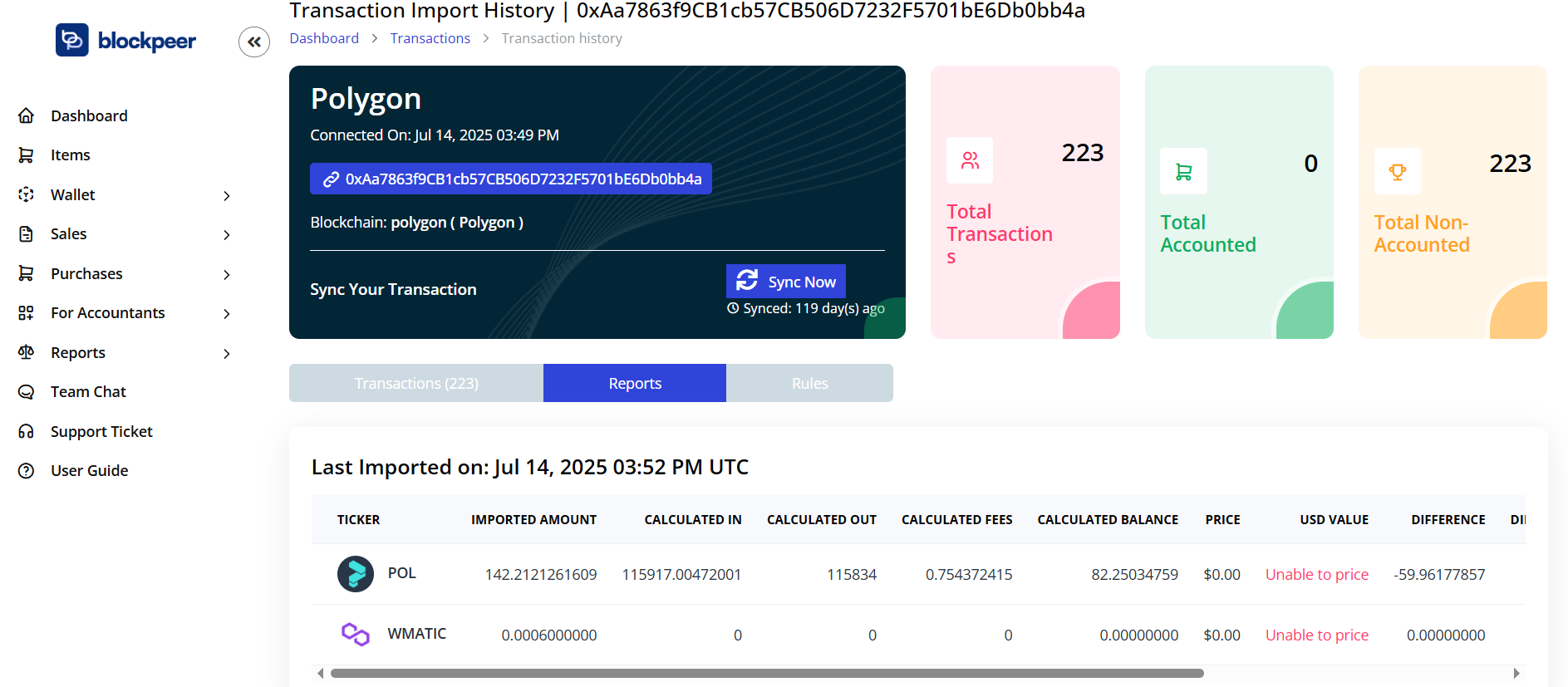
- Go to Wallets → Blockchain Import → Select wallet
- Select Reports
- BlockPeer shows:
- Blockchain Balance (what we recorded)
- Actual Balance (what We synced)
- Difference (should be $0)
- If difference exists, see "Reconciling Differences"
Monthly Close
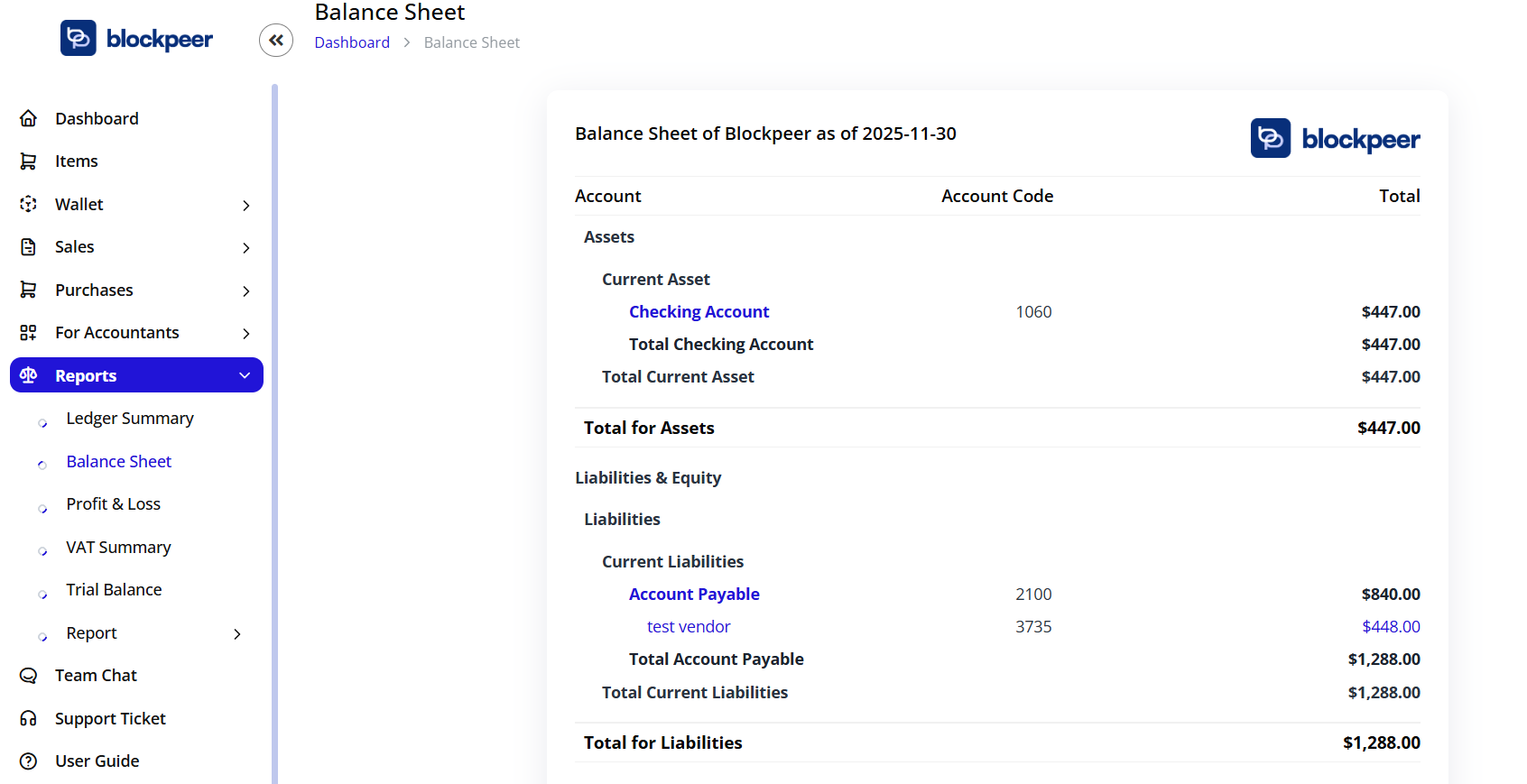
- Go to Reports → Balance Sheet
- Select month to close
- Review all accounts for that period
- Check all transactions are recorded
- Verify balance sheet balances (Assets = Liabilities + Equity)
Reconciling Differences
If actual balance ≠ book balance:
-
Check pending transactions
- Deposits might take days to clear
- Withdrawals might be pending
- Check transaction status
-
Review recent transactions
- Did you miss recording something?
- Are fees accounted for?
- Check wallet for unrecorded transfers
-
Add adjustment entry
- If discrepancy is small (likely fees or rounding):
- Go to Accounting → New Transaction
- Type: Adjustment
- Debit or credit the difference account
- Add note explaining
-
Investigate discrepancies
- Large differences = likely data issue
- Check wallet directly
- Verify transactions are syncing
- Contact support if needed
Multi-Currency Accounts
For international businesses:
Setting Up
- Go to Settings → Organization Setup
- Add supported currencies
- Set exchange rate source (automatic or manual)
- Click Save
Using Multi-Currency Accounts
- When creating account, select currency
- Balance shows in that currency
- In reports, see both currency value and converted value
Exchange Rate Management
- Go to Settings → Exchange Rates
- View current rates
- Can set manual rates if needed
- Rates update automatically if using auto-update
Account Reports
Account Statement
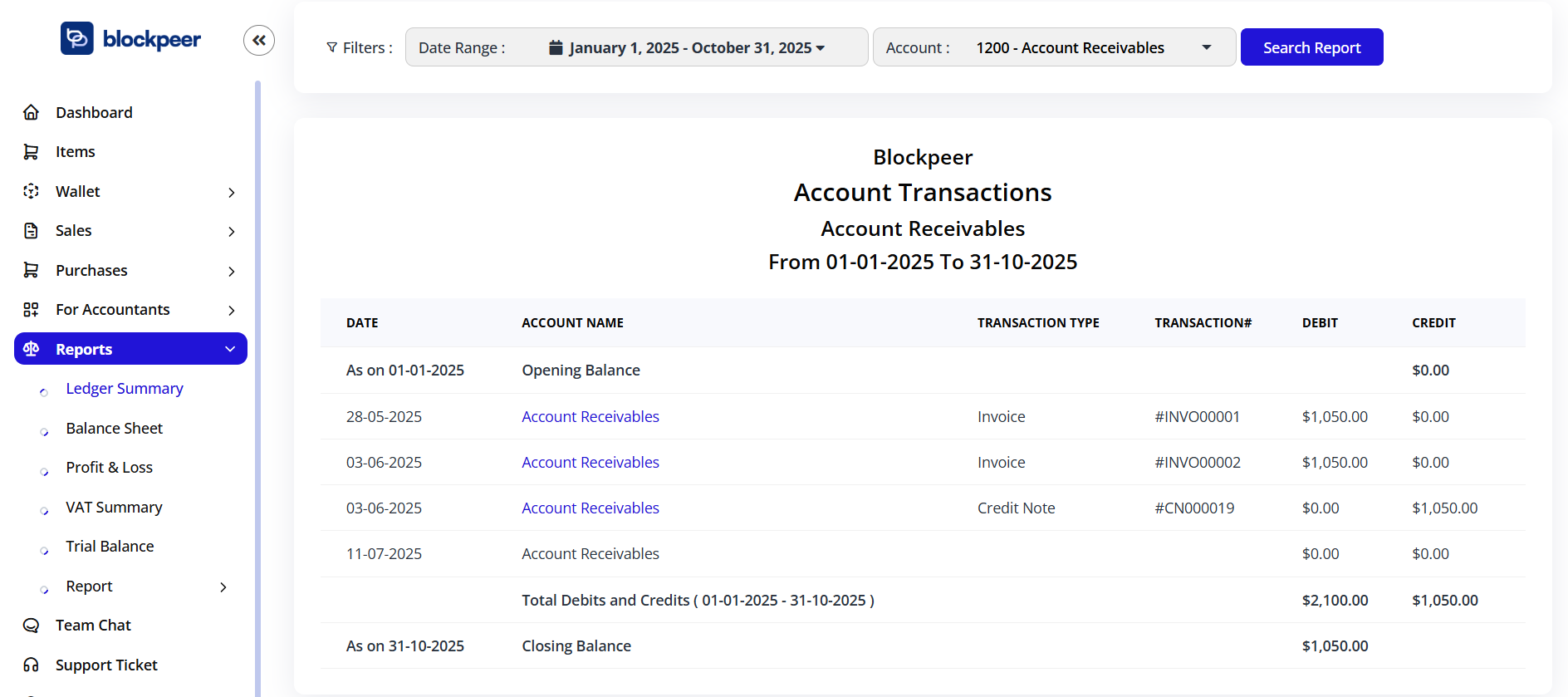
See all transactions for one account:
- Go to Reports → Ladger Summary
- Find account, click to view
- Click Account Statement
- Select date range
- See all transactions in chronological order
- Export to PDF
Trial Balance
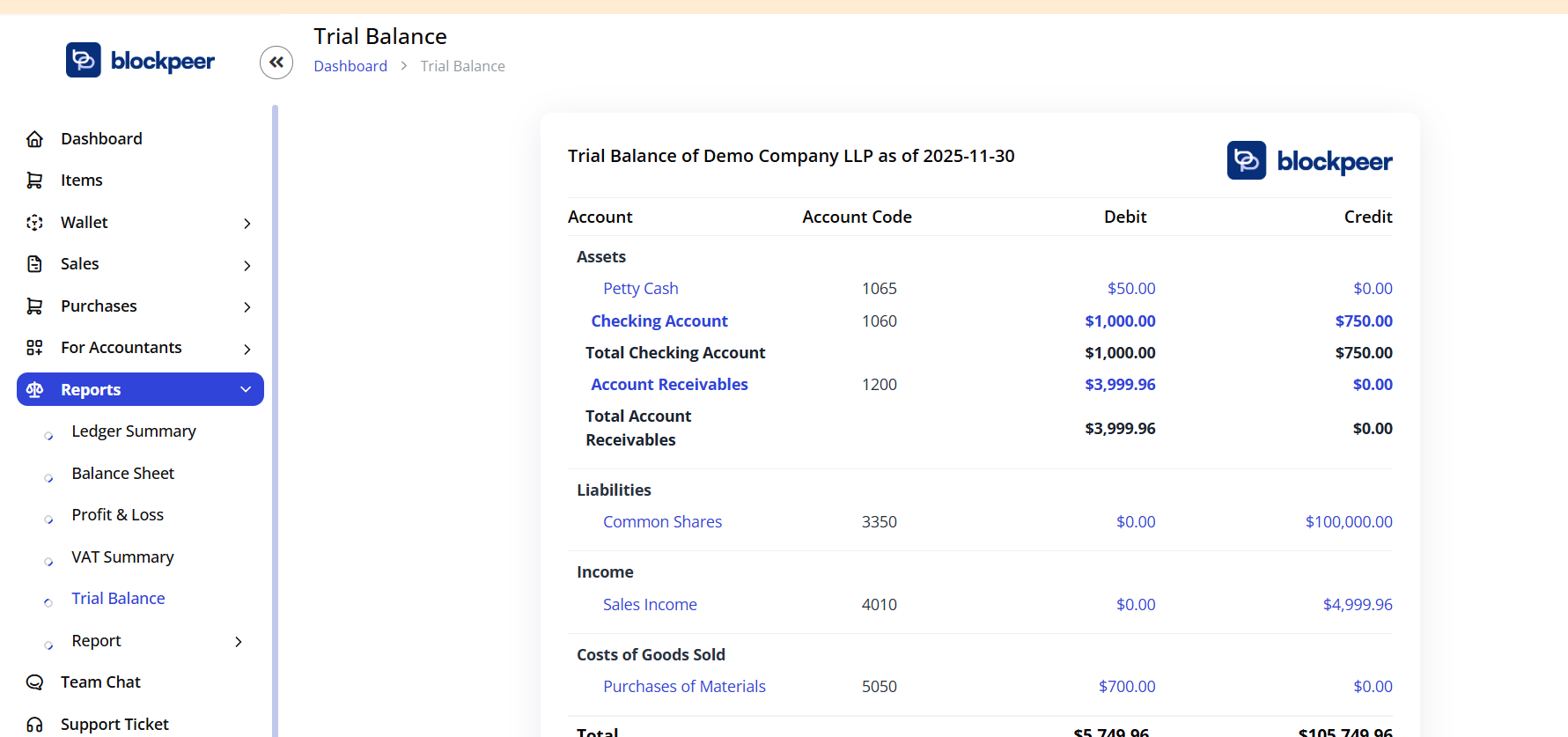 Verify accounting equation (Assets = Liabilities + Equity):
- Go to Reports → Trial Balance
- Select as-of date
- See all accounts with debit/credit balances
- Total debits should = Total credits