First Time Setup - Your First 15 Minutes
Understanding BlockPeer Modules
BlockPeer has 9 specialized modules. Before setting up, it helps to understand what each does:
The 9 Modules at a Glance
| Module | Purpose | Setup Time |
|---|---|---|
| Books | Financial accounting & reporting | 15 min |
| eTrade | Create trade documents | 10 min |
| easyBL | Quick electronic bills of lading | 5 min |
| Signet | Digital signatures & compliance | 5 min |
| Tracker | Real-time shipment monitoring | 10 min |
| Wallet | Crypto asset management | 5-15 min |
| Cliq | Trade finance & working capital | 20 min |
| Contract | Contract management | 10 min |
| Freight | Freight booking & management | 15 min |
→ Want more details? See All 9 Modules Explained
How to Switch Between Modules
At the top-right of any module page, you'll see a grid of 9 dots (grid icon). This is your Module Switcher.
Using the Module Switcher
- Look for the 9-dot grid icon ⊞⊞⊞ at top-right
- Click it - a menu appears showing all 9 modules
- Select a module - instantly switch to it
- Your data is saved - no work is lost
Pro Tip
You can switch between modules from ANY page at ANY time. Your work is automatically saved.
Your First 15 Minutes on BlockPeer
Follow these steps to get ready:
Step 1: Complete Your Profile (2 minutes)
- Log in to BlockPeer
- You see the Module Selection screen with 9 module tiles
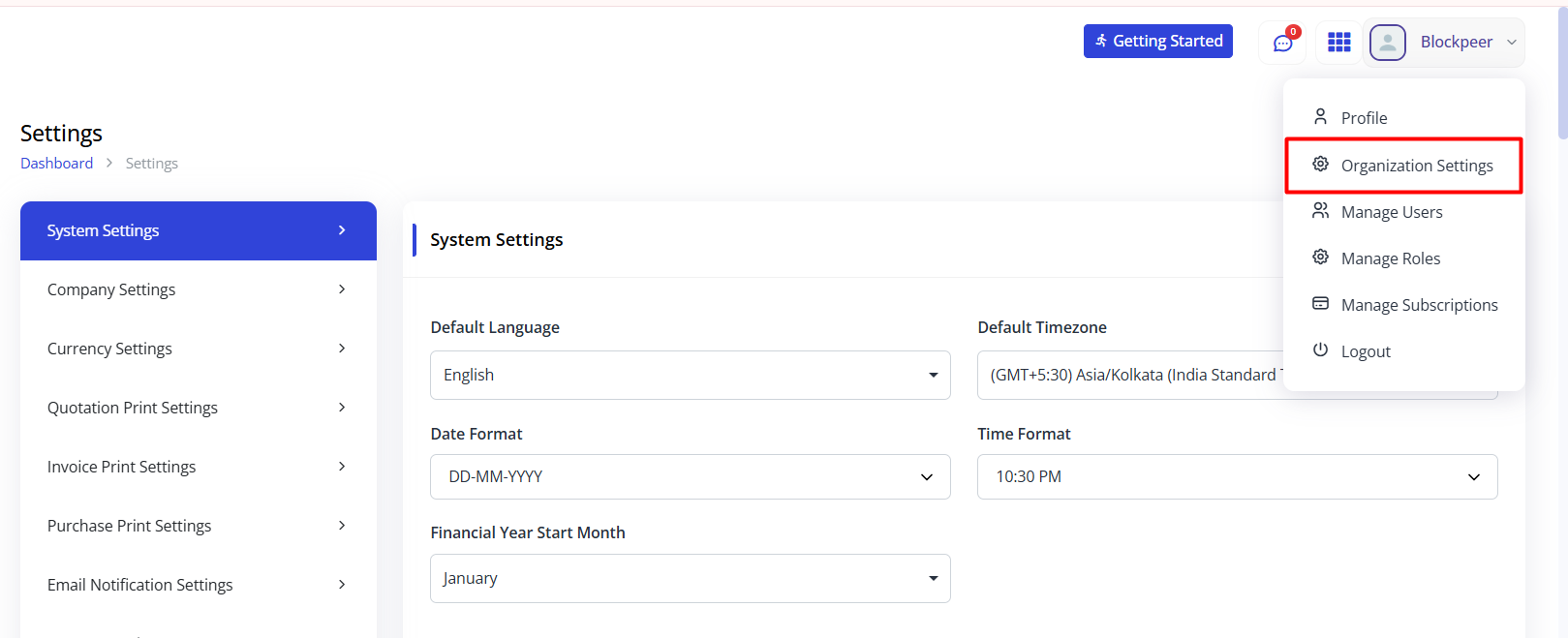
- Before entering a module, click your Avatar (top-right)
- Select Settings → Profile
- Fill in:
- Full Name
- Organization Name
- Role/Title
- Country
- Phone (optional)
- Click Save Profile
Step 2: Choose Your First Module (2 minutes)
-
Go back to Module Selection screen
-
See 9 module tiles displayed
-
Read the descriptions on each tile:
📊 Books - "Simplify digital-asset and fiat accounting..."
📄 eTrade - "Create and manage legally valid trade documents..."
💳 easyBL - "Issue and transfer P&I-approved electronic Bills of Lading..."
✍️ Signet - "Execute and track signatures that meet eIDAS, ESIGN..."
📍 Tracker - "Get 360s eye view of Trading/Shipping Ops..."
💰 Wallet - "Access secure, non-custodial MPC and Safe Multisig wallets..."
🔗 Cliq - "Trade Finance Marketplace. Unlock working-capital efficiency..."
📋 Contract - "Digitize NDAs, sale agreements, and deal sheets..."
🚚 Freight - "Manage freight bookings, shipping plans, shipping instructions..."
-
Ask yourself: Which matches my primary need?
- Finance-focused? → Choose Books
- Create documents? → Choose eTrade or easyBL
- Need financing? → Choose Cliq (after creating documents)
- Need signatures? → Choose Signet
- Track shipments? → Choose Tracker
- Manage crypto? → Choose Wallet
- Manage contracts? → Choose Contract
- Book freight? → Choose Freight
-
Click the module tile to enter it
Step 3: Initial Module Setup (5 minutes)
Depending on your chosen module, follow its setup:
- Go to Settings → Organization Setup
- Fill in:
- Organization name
- Fiscal year end date
- Default currency
- Click Setup Complete
- You're ready! → Follow Books Getting Started Guide
Step 4: Set Up Team Members (3 minutes - Optional)
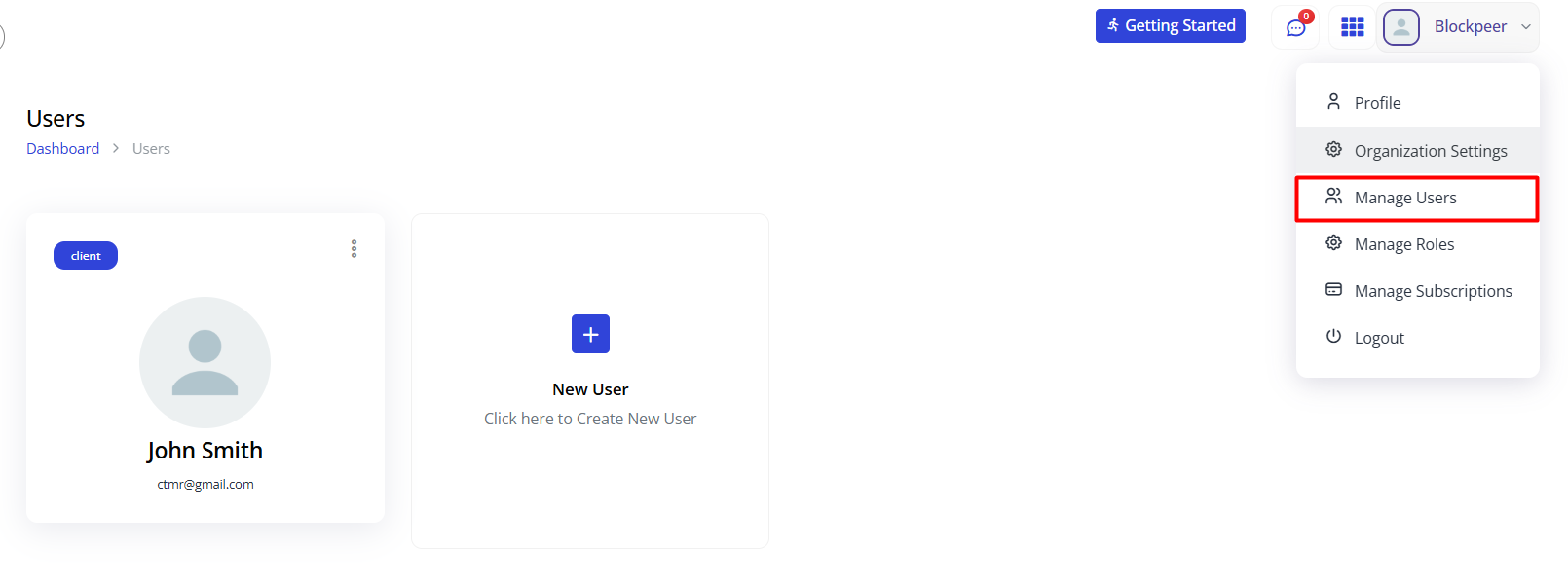 If working with a team:
- Go to Settings → Team Members
- Click Invite Team Member
- Enter their email and select role
- Send invite
- They receive email, create account, automatically added
What to Do After Setup
Now that you're set up, follow your module's guide:
| If You Chose | Follow This Guide |
|---|---|
| Books | Getting Started with Books |
| Cliq | Getting Started with Cliq |
| Contract | Getting Started with Contract |
| eTrade | Getting Started with eTrade |
| easyBL | Getting Started with easyBL |
| Signet | Getting Started with Signet |
| Tracker | Getting Started with Tracker |
| Wallet | Getting Started with Wallet |
| Freight | Getting Started with Freight |
Remember: You Can Switch Anytime
- Don't like your first choice? Switch to another module using the 9-dot icon
- Want to use multiple modules? You can! Most businesses use 3-5 modules
- Your data is safe - each module is separate but connected
- Team stays the same - invite team once, they have access to all modules they need
Common Mistakes to Avoid
❌ Don't skip profile setup - Your organization info is needed by all modules
❌ Don't forget security - Enable 2FA to protect your data
❌ Don't feel locked in - You can switch modules anytime
✅ Do start with ONE module - Master it before adding others
✅ Do read the module descriptions - Pick the right one first time
✅ Do follow the Getting Started guide - Each module has step-by-step instructions