Module Selection Guide
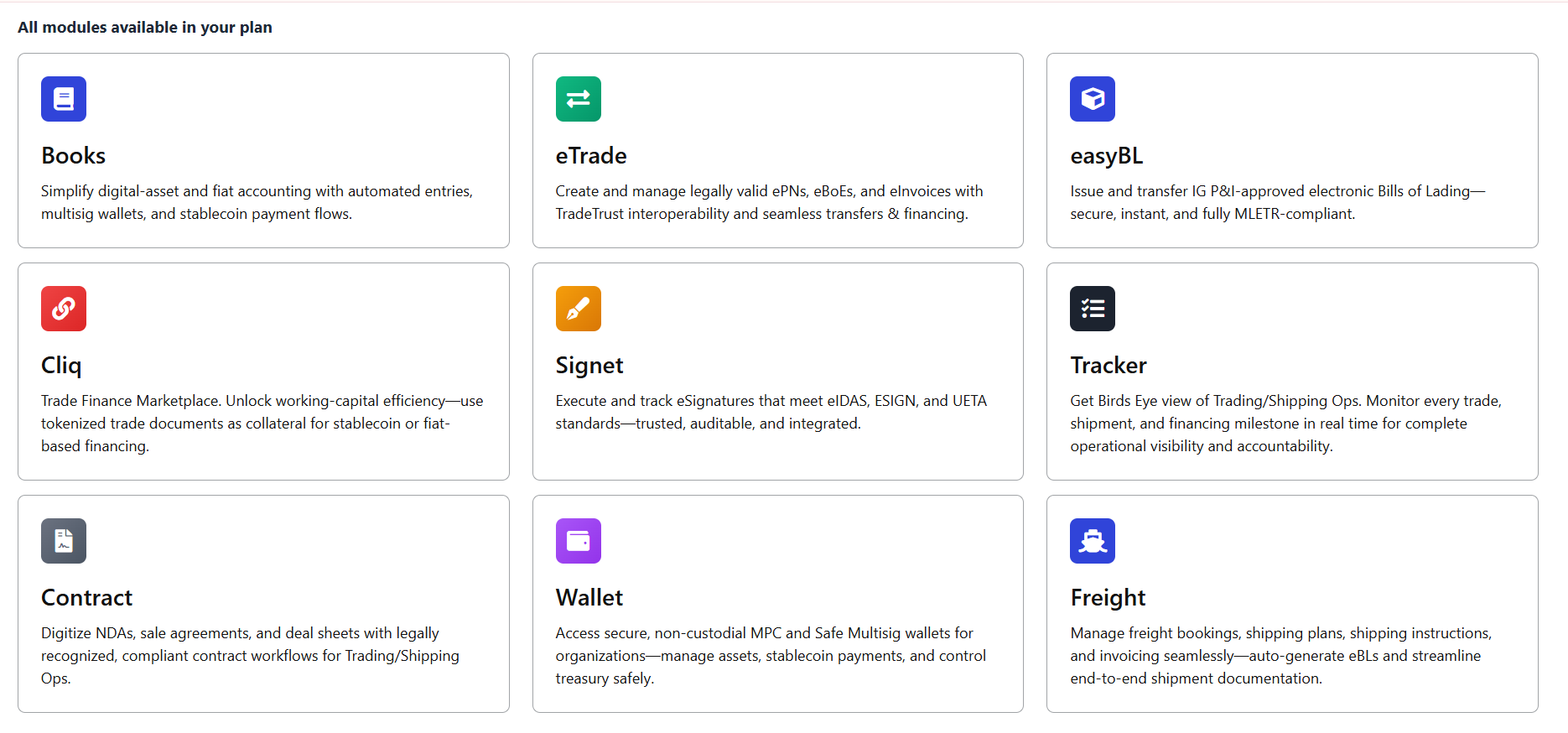
The BlockPeer Module Grid
When you log in, you see 9 modules displayed in a grid:
[Getting Started] [Exit] ☰ ⊞⊞⊞ [Profile ▼]
↑
Module Switcher Icon
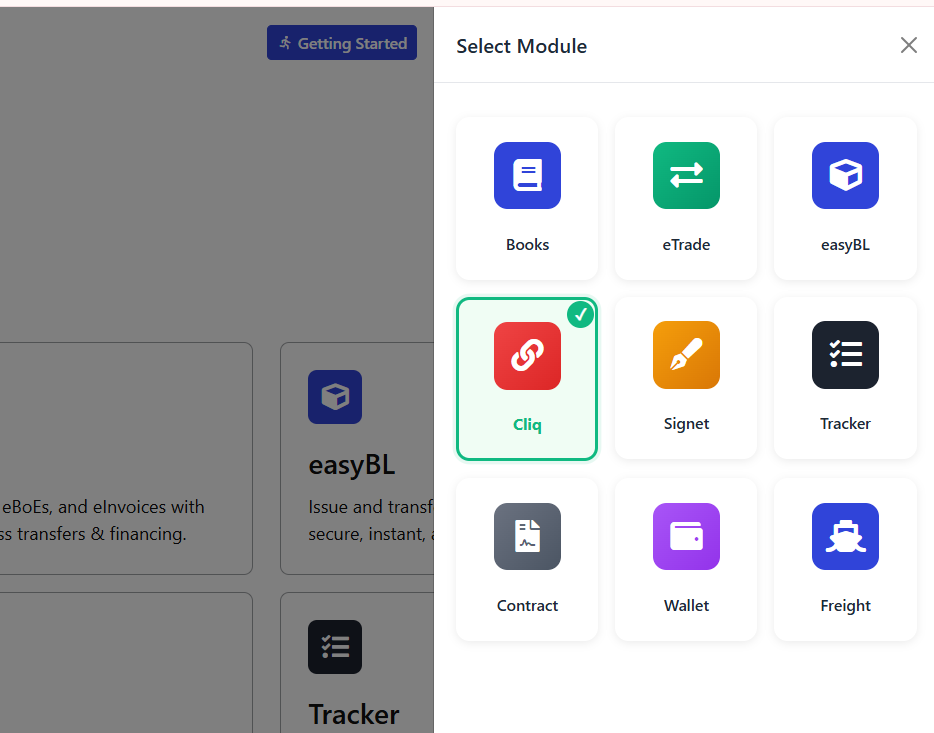
How to Use It
- Click the 9-dot icon
- Menu shows all 9 modules
- Your current module is highlighted
- Click any module to switch
- Instantly taken to that module
- All your work is saved
Benefits
✅ Switch between modules anytime
✅ No re-login required
✅ Your work is automatically saved
✅ Your data stays secure
✅ Quick workflow switching
Module Readiness Checklist
Before entering each module, you should have:
Books
- Organization name
- Financial year information
- List of bank/wallet accounts
- Tax preferences (FIFO, LIFO, etc.)
eTrade
- Company legal name
- Business registration number
- Signatory details
- Document templates (optional)
easyBL
- Company details
- Standard shipping terms
- Carrier information
Signet
- Understanding of who signs what
- Signatory email addresses
- Signing order (if sequential)
Tracker
- Shipment details
- Carrier information
- Milestones to track
- Contact information
Wallet
- Blockchains you'll use
- Initial funding plan
- Team member list (if multisig)
Cliq
- KYC documents
- Banking information
- Trade documents ready
- Organization details
Contract
- Contract templates needed
- Signatories
- Contract terms
Freight
- Shipper/consignee info
- Carrier accounts
- Shipping routes
- Cost structure
Next Steps
- Complete First-Time Setup - Setup your organization
- Choose your first module from the grid
- Follow that module's Getting Started guide
- Use the 9-dot switcher to explore other modules
- Add modules as your business grows