Verify & Endorse
Overview
Verify & Endorse is the document verification and authentication module that allows you to verify the authenticity of any trade document (eInvoices, ePromissory Notes, Warehouse Receipts) issued through Blockpeer eTrade or any TradeTrust-compatible platform. This module ensures documents are legitimate, unaltered, and can be trusted for business transactions and financing.
What is Verify & Endorse?
Document Verification
Verification is the process of:
- Confirming document authenticity
- Checking document hasn't been tampered with
- Verifying issuer identity
- Confirming blockchain registration
- Validating DNS linkage
- Checking document status
Why Verification Matters
For Recipients:
- Ensure documents are genuine
- Verify issuer identity
- Check for tampering
- Validate ownership
- Due diligence
For Financial Institutions:
- Risk assessment
- Loan collateral verification
- Compliance requirements
- Fraud prevention
- Legal validity confirmation
For Trading Partners:
- Trust building
- Fraud prevention
- Contract validation
- Payment security
- Dispute prevention
TradeTrust Verification
TradeTrust is the global standard for:
- Electronic trade documents
- Cross-border recognition
- Interoperability
- Legal validity
- International acceptance
Blockpeer eTrade uses TradeTrust, meaning:
- Documents verifiable on tradetrust.io
- Globally recognized
- Legally valid
- Interoperable with other systems
- Trusted by banks and institutions
Accessing Verify & Endorse
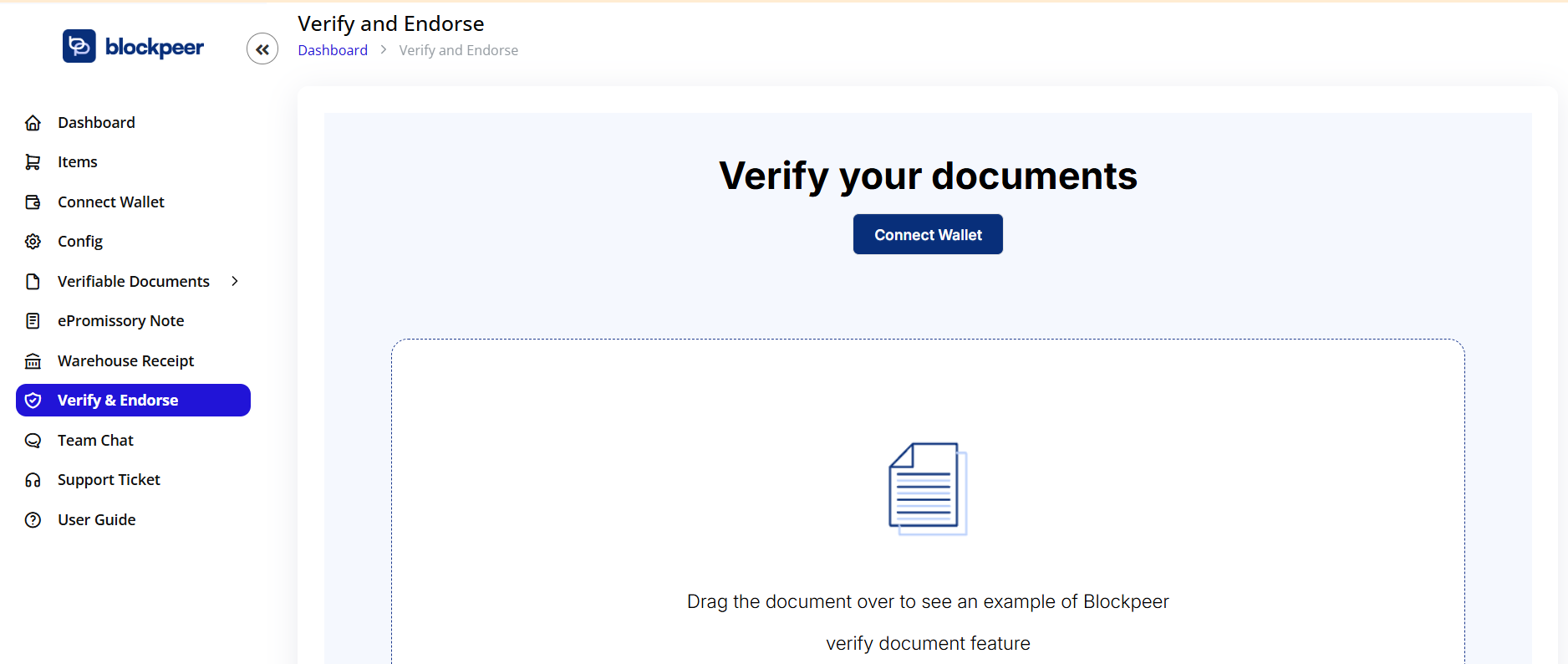
- Click Verify & Endorse in sidebar
- Verification interface opens
- Document upload area displayed
Interface Overview
Header:
- Verify your documents title
- Central message
- Clear instructions
Connect Wallet Button:
- Blue button in top-right
- "Connect Wallet"
- Required for some operations
- Optional for basic verification
Upload Area:
- Large central area
- Document icon (📄)
- Drag and drop zone
- Browse option
Instructions:
- Drag the document over to see an example of Blockpeer
- verify document feature Alternative Upload:
- "Or" text below
- Browse button (implied)
- Click to select file
Verifying Documents
Step 1: Prepare Document
Obtaining Document:
From Blockpeer eTrade:
- Open document (eInvoice, ePN, Warehouse Receipt)
- Click Download button
- Select TradeTrust format (.tt or .json file)
- Save to your computer
From Trading Partners:
- Receive via email
- Download from shared link
- Request from sender
- Via document exchange platform
Supported Formats:
- .tt - TradeTrust format (preferred)
- .json - JSON format
- .pdf - If embedded with TradeTrust data
- Other TradeTrust-compatible formats
Step 2: Upload Document Method 1: Drag and Drop
- Locate document file on your computer
- Click and hold the file
- Drag file over to upload area
- Area highlights
- Release mouse to drop
- Upload begins automatically
Method 2: Click to Browse
- Click upload area or browse button
- File browser opens
- Navigate to document location
- Select document file
- Click "Open"
- Upload begins
Upload Process:
- File uploads
- Progress indicator may show
- Processing begins
- Verification starts automatically
Step 3: Verification Results
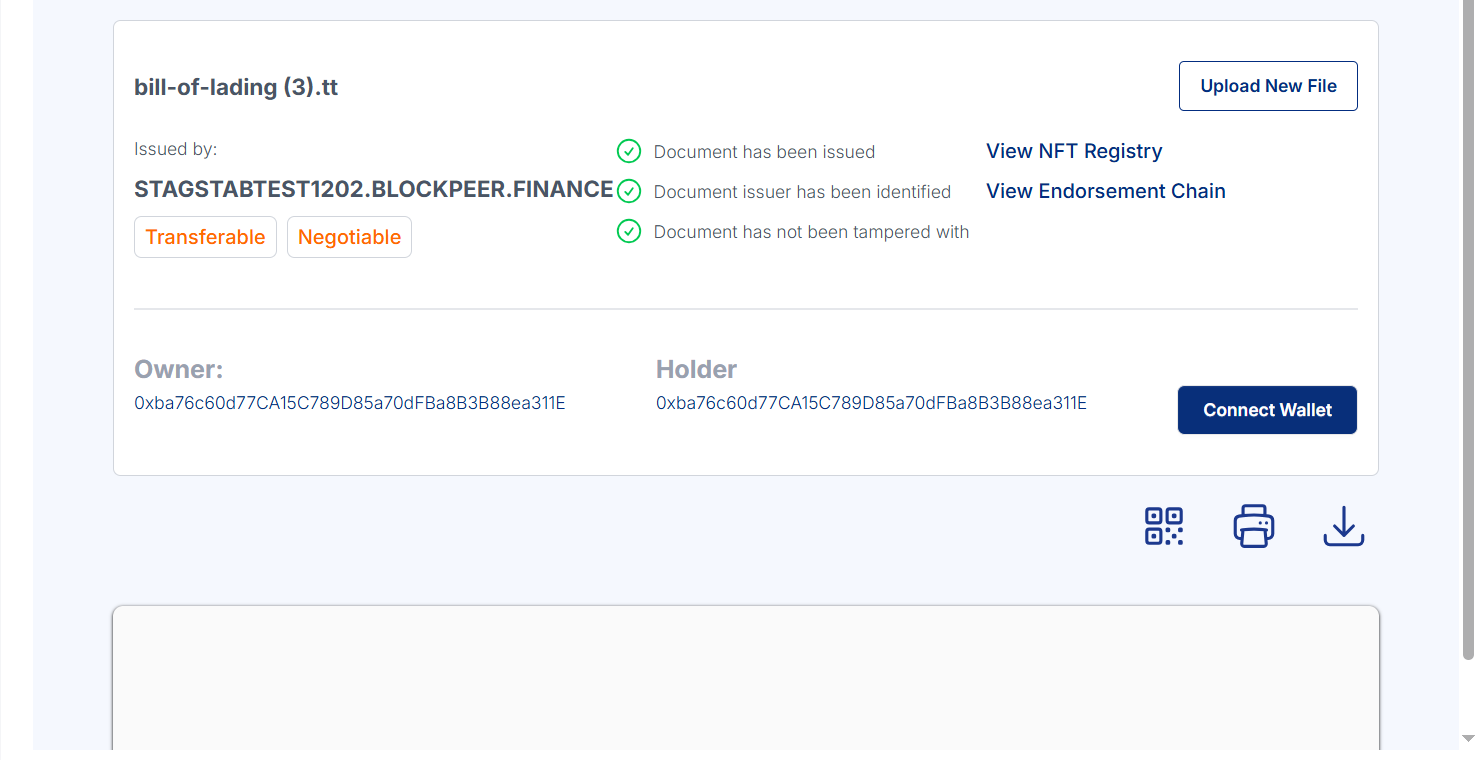
After upload, system checks:
-
Document Integrity
- Has document been tampered with?
- Does content match blockchain?
- Is hash valid?
-
Issuer Identity
- Is issuer DNS verified?
- Does domain match token registry?
- Is issuer legitimate?
-
Document Status
- Is document currently valid?
- Has it been revoked?
- Who is current owner?
Results Display:
✅ All Checks Passed:
✓ Document Integrity Verified
✓ Issuer Identity Confirmed
✓ Document Status Valid
❌ Verification Failed:
✗ Document Integrity - Failed
Details: Document has been tampered with
⚠️ Partial Verification:
✓ Document Integrity Verified
✗ Issuer Identity - Cannot verify DNS
✓ Document Status Valid
Step 4: View Document Details
After successful verification:
Document Information Shown:
Basic Details:
- Document type (eInvoice, ePN, Warehouse Receipt)
- Document number/reference
- Issue date
- Status
Issuer Information:
- Issuer name
- Company domain
- DNS verification status
- Token registry address
Ownership Details:
- Current owner
- Previous owners (if transferred)
- Transfer history
- Ownership chain
Blockchain Information:
- Transaction hash
- Block number
- Network/chain
- Token ID
- Timestamp
Content Summary:
- Amount (for invoices/notes)
- Parties involved
- Key terms
- Maturity date (if applicable)
Verification Certificate:
- Verification timestamp
- Verification method
- Verification status
- Digital signature
Step 5: Verification Actions
Available Actions:
Download Certificate:
- Verification certificate
- PDF format
- Proof of verification
- Shareable document
View Full Document:
- Complete document details
- All fields visible
- Attached files accessible
- Print option
Share Verification:
- Generate shareable link
- Send verification results
- Email option
- Copy link
Verify on TradeTrust.io:
- Open on TradeTrust website
- Independent verification
- External confirmation
- Global recognition
Verifying on TradeTrust.io
Why Use TradeTrust.io
Independent Verification:
- Third-party platform
- Not operated by Blockpeer
- Neutral verification
- Globally recognized
For Banks and Institutions:
- May require external verification
- TradeTrust is industry standard
- Compliance requirement
- Trusted verification
For Legal Purposes:
- Court-admissible evidence
- Independent confirmation
- International recognition
- Legal validity
TradeTrust.io Verification Process
Step 1: Visit TradeTrust Website
- Go to https://ref.tradetrust.io
- Main page loads
- Navigation menu visible
Step 2: Access Verify Tool
- Click "Verify Documents" button
- Upload interface appears
Step 3: Upload Document

Similar interface to Blockpeer:
- Large upload area
- Drag and drop support
- Browse option
- Clear instructions
Upload Steps:
- Drag document file to upload area
- Or click to browse and select
- File uploads automatically
- Verification begins
Step 4: View TradeTrust Results
Verification Display Shows:
Three Key Checks:
-
Document Integrity
- ✅ Green checkmark: Valid
- ❌ Red X: Tampered
- Status message
-
Issuer Identity
- ✅ DNS Verified
- Company name displayed
- Domain shown
- Token registry confirmed
-
Document Status
- ✅ Valid and Active
- Not revoked
- Current status
- Ownership information
Detailed Information:
Issuer Section:
- Company legal name
- Verified domain
- Location/jurisdiction
- Contact information (if public)
Document Details:
- Document type
- Reference number
- Issue date
- Parties involved
- Key information
Blockchain Details:
- Network name
- Transaction hash (clickable)
- Block number
- Token registry address
- DNS TXT record
Transfer History:
- Original issuer
- All transfers
- Current owner
- Transfer dates
- Transaction hashes
Step 5: Download or Share
From TradeTrust.io:
Download Options:
- Verification report (PDF)
- Document copy
- Certificate of verification
- Blockchain proof
Share Options:
- Generate shareable link
- Unique verification URL
- QR code
- Email sharing
Print Option:
- Print verification page
- Print document
- Print certificate
- Physical records
Understanding Verification Results
Successful Verification
What It Means:
✅ Document is Authentic
- Created by stated issuer
- Content unchanged
- Blockchain-verified
- Trustworthy
✅ Issuer is Verified
- DNS properly configured
- Domain ownership confirmed
- Legitimate company
- Traceable identity
✅ Document is Valid
- Currently active
- Not revoked
- Ownership clear
- Legally binding
Safe to Proceed:
- Accept document
- Process transaction
- Grant financing
- Enter agreement
Failed Verification
Common Failure Reasons:
❌ Document Integrity Failed
Meaning:
- Document has been altered
- Content doesn't match blockchain
- Hash mismatch
- Tampered document
Action:
- Do NOT accept document
- Contact issuer
- Request original
- Report fraud if suspected
❌ Issuer Identity Failed
Meaning:
- DNS not configured properly
- Domain doesn't match registry
- Issuer verification failed
- Potentially fraudulent
Action:
- Request clarification from issuer
- Check DNS configuration
- Verify issuer legitimacy
- Proceed with caution
❌ Document Status Invalid
Meaning:
- Document has been revoked
- No longer valid
- Cancelled by issuer
- Superseded by another
Action:
- Document is void
- Do not accept
- Request valid document
- Check with issuer
Partial Verification
When Some Checks Pass:
⚠️ Common Scenarios:
Scenario 1: DNS Propagation Delay
✓ Document Integrity
⚠ Issuer Identity - DNS propagating
✓ Document Status
Action:
- Wait 15-30 minutes
- Verify again
- DNS may still be propagating
- Usually resolves automatically
Scenario 2: Network Issues
✓ Document Integrity
✓ Issuer Identity
⚠ Document Status - Cannot reach blockchain
Action:
- Check internet connection
- Try again shortly
- Use different network
- Contact support if persists
Scenario 3: New Issuer
✓ Document Integrity
⚠ Issuer Identity - New DNS record
✓ Document Status
Action:
- Manually verify issuer
- Check company registration
- Confirm domain ownership
- Proceed with caution
Endorsement Process
What is Endorsement?
Traditional Endorsement:
- Signature on back of document
- Transfers rights
- Shows ownership chain
- Legal transfer mechanism
Digital Endorsement:
- Blockchain signature
- Transfer transaction
- Ownership recorded
- Transparent chain
When to Endorse
Endorsement Needed For:
Negotiable Instruments:
- ePromissory Notes
- Bills of Exchange
- Warehouse Receipts
- Transferable invoices
To Transfer Ownership:
- Selling the document
- Pledging as collateral
- Assigning rights
- Factoring/discounting
Not Typically Needed:
- Simple invoices (unless negotiable)
- Non-transferable documents
- Internal records
- Acknowledgments
Endorsement Types
Blank Endorsement:
- Transfer to bearer
- Anyone with document can claim
- Not recommended
- High risk
Special Endorsement:
- Transfer to specific party
- Named recipient
- Most common
- Secure method
Restrictive Endorsement:
- Limited purpose
- "For deposit only"
- Conditions attached
- Specific instructions
Qualified Endorsement:
- "Without recourse"
- Endorser not liable
- Risk transferred completely
- Less common
Endorsement Process in Blockpeer
Step 1: Open Document
- Navigate to document to endorse
- Ensure you are current owner
- Document must be in valid status
- Click document to open
Step 2: Initiate Endorsement
- Click Endorse or Transfer button
- Endorsement form appears
- Wallet connection required
Step 3: Enter Endorsement Details
Endorsee Information:
- Name or company name
- Wallet address (0x...)
- Email (for notification)
- Contact details
Endorsement Type:
- Select type (Special, Restrictive, etc.)
- Add conditions if any
- Specify restrictions
- Special instructions
Consideration:
- Amount paid (if selling)
- Currency
- Payment terms
- Transaction details
Endorsement Terms:
- Effective date
- Any conditions
- Recourse or non-recourse
- Additional notes
Step 4: Sign Endorsement
Digital Signature Required:
-
Review all endorsement details
-
Click Sign and Endorse
-
Wallet popup appears
-
Shows endorsement transaction:
- From: Your wallet
- To: Endorsee wallet
- Document token ID
- Gas fee
-
Click Confirm in wallet
-
Transaction submitted to blockchain
-
Wait for confirmation (15-60 seconds)
Step 5: Endorsement Complete
After Confirmation:
- Endorsement recorded on blockchain
- Ownership transferred
- Endorsee notified
- You receive confirmation
- Transaction hash provided
- Endorsement visible in document history
Endorsement Chain
Tracking Endorsements:
Each document maintains complete history:
Original Issue:
Issuer: ABC Company
To: John Smith
Date: 2025-01-15
Tx: 0xabc...123
First Endorsement:
Endorser: John Smith
To: XYZ Bank
Date: 2025-02-01
Reason: Loan collateral
Tx: 0xdef...456
Second Endorsement:
Endorser: XYZ Bank
To: John Smith
Date: 2025-03-15
Reason: Loan repaid
Tx: 0xghi...789
Benefits:
- Complete transparency
- Clear ownership
- Dispute prevention
- Audit trail
- Legal proof
Due Diligence
Before Accepting Documents
Verification Checklist:
Document Verification:
- ✓ Verify on Blockpeer
- ✓ Verify on TradeTrust.io
- ✓ Check all three verifications pass
- ✓ Download verification certificate
- ✓ Review document details thoroughly
Issuer Verification:
- ✓ Confirm issuer identity
- ✓ Check company registration
- ✓ Verify domain ownership
- ✓ Check business reputation
- ✓ Contact issuer directly
Content Verification:
- ✓ Amounts are reasonable
- ✓ Dates are logical
- ✓ Terms are clear
- ✓ Parties are legitimate
- ✓ Details match expectations
Ownership Verification:
- ✓ Current owner is sender
- ✓ Transfer chain is clear
- ✓ No suspicious transfers
- ✓ Ownership rights are valid
Legal Verification:
- ✓ Document type is appropriate
- ✓ Jurisdiction is acceptable
- ✓ Terms are enforceable
- ✓ Compliance requirements met
Red Flags to Watch
Document Issues:
- ❌ Verification fails
- ❌ Partial verification without explanation
- ❌ Multiple failed attempts
- ❌ Document recently created but claims old date
- ❌ Suspicious amendments
Issuer Issues:
- ❌ Unknown issuer
- ❌ DNS not verified
- ❌ New domain (less than 6 months)
- ❌ Inconsistent information
- ❌ Cannot contact issuer
Content Issues:
- ❌ Unrealistic amounts
- ❌ Unusual terms
- ❌ Vague descriptions
- ❌ Missing critical information
- ❌ Contradictory details
Ownership Issues:
- ❌ Multiple rapid transfers
- ❌ Unknown current owner
- ❌ Gaps in transfer history
- ❌ Disputed ownership
- ❌ Unclear transfer reasons
If Red Flags Present:
- Stop immediately
- Do not accept document
- Conduct deeper investigation
- Request additional proof
- Consult legal counsel
- Report if fraud suspected
Verification for Different Document Types
eInvoice Verification
Key Checks:
Invoice Details:
- Invoice number
- Issue date and due date
- Customer information
- Line items and amounts
- Payment terms
- Total amount
Validity Checks:
- Is invoice duplicate?
- Has it been paid?
- Is it assigned/factored?
- Any liens or claims?
- Within credit terms?
Payment Verification:
- Payment method specified
- Crypto address valid
- Token/currency clear
- Amount matches goods/services
Red Flags:
- Duplicate invoice numbers
- Unusually large amounts
- Unknown supplier
- Suspicious payment terms
- Recent issue date for old goods
ePromissory Note Verification
Key Checks:
Note Details:
- Principal amount
- Issue date and maturity date
- Interest rate (if any)
- Parties (drawer, drawee, beneficiary)
- Payment terms
- Governing law
Legal Validity:
- Unconditional promise to pay
- Fixed amount
- Definite payment date
- Payable to order
- Properly executed
Credit Assessment:
- Drawer creditworthiness
- Drawee reliability (if applicable)
- Collateral or guarantees
- Previous payment history
- Credit reports
Red Flags:
- Unrealistic interest rates
- Vague payment terms
- Unknown drawer
- Missing critical information
- Conditional payments
Warehouse Receipt Verification
Key Checks:
Receipt Details:
- Commodity type and quantity
- Grade and quality specifications
- Warehouse location
- Storage charges
- Insurance coverage
- Release terms
Warehouse Verification:
- Licensed warehouse
- Bonded and insured
- Good reputation
- Regular inspections
- Financial stability
Commodity Verification:
- Market value reasonable
- Quality certified
- Quantity verifiable
- Proper storage conditions
- Insurance adequate
Red Flags:
- Unlicensed warehouse
- Unusual commodity grades
- Excessive storage charges
- Questionable quality claims
- No inspection certificates
Verification Reports
Generating Reports
Verification Certificate:
Contains:
- Document details
- Verification results
- Issuer information
- Blockchain proof
- Timestamp
- Digital signature
Creating Report:
- Complete verification
- Click Generate Report or Download Certificate
- Select format:
- PDF (standard)
- JSON (data format)
- HTML (web format)
- Report generated
- Download or email
Report Sections:
Header:
- Report title
- Report date and time
- Report number
- Blockpeer/TradeTrust logo
Executive Summary:
- Overall verification result
- Pass/Fail status
- Key findings
- Risk assessment
Document Information:
- Complete document details
- All fields and values
- Attachments list
- Parties involved
Verification Details:
- Each check performed
- Results for each check
- Timestamps
- Methods used
Blockchain Information:
- Network/chain
- Transaction hashes
- Block numbers
- Smart contract addresses
- Token IDs
Issuer Information:
- Company details
- DNS verification
- Domain ownership
- Contact information
Transfer History:
- All endorsements
- Ownership chain
- Transfer dates
- Transaction details
Appendices:
- Technical details
- Verification methodology
- Standards compliance
- Legal disclaimers
Using Verification Reports
For Internal Records:
- File with transaction
- Audit trail
- Compliance documentation
- Risk management
For Regulators:
- Compliance proof
- Transaction evidence
- Due diligence documentation
- Legal requirements
For Legal Purposes:
- Court evidence
- Dispute resolution
- Contract enforcement
- Fraud investigation
For Counterparties:
- Build trust
- Transparency
- Assurance
- Professional credibility
Batch Verification
Verifying Multiple Documents
When Needed:
- Portfolio review
- Bulk purchases
- Loan applications
- Audit requirements
- Due diligence exercises
Batch Upload Process:
-
Prepare Documents
- Organize all documents
- Same folder
- Consistent naming
- Check file formats
-
Batch Upload
- Click Batch Verify (if available)
- Select multiple files
- Or zip file upload
- Upload begins
-
Processing
- System verifies each
- Progress indicator
- Real-time updates
- Completion notification
-
Results Summary
- Total documents
- Verified count
- Failed count
- Warning count
-
Detailed Results
- List of all documents
- Status for each
- Quick filters
- Export capability
Batch Report:
Summary includes:
- Total documents processed
- Success rate percentage
- List of failures
- Common issues
- Risk summary
- Recommendations
Integration with Business Processes
Accounts Payable
Invoice Verification Workflow:
-
Receive Invoice
- Vendor sends eInvoice
- Download document
- Import to AP system
-
Automatic Verification
- Auto-verify on receipt
- Results logged
- Alerts for failures
-
Approval Routing
- If verified: Route for approval
- If failed: Flag for review
- Automatic rules
- Exception handling
-
Payment Processing
- Only verified invoices paid
- Payment to verified address
- Blockchain confirmation
- Records updated
Credit and Risk Management
Document Verification in Credit Process:
-
Application Received
- Customer submits documents
- eInvoices, ePromissory Notes, Warehouse Receipts
-
Verification Check
- Automatic verification
- Results fed to credit system
- Risk scoring adjusted
- Decision support
-
Credit Decision
- Verified documents: Higher credit
- Failed verification: Decline or review
- Partial: Additional due diligence
- Automated rules engine
-
Monitoring
- Ongoing verification
- Re-verify periodically
- Alert on status changes
- Portfolio management
Compliance and Audit
Verification for Compliance:
Regulatory Requirements:
- KYC (Know Your Customer)
- AML (Anti-Money Laundering)
- Trade finance compliance
- Sanctions screening
Verification Provides:
- Issuer identity proof
- Transaction traceability
- Document authenticity
- Audit trail
Audit Trail:
- All verifications logged
- Timestamps recorded
- Results preserved
- Reports generated
- Evidence maintained
Verification Security
Protect Against:
Phishing:
- Verify website URLs
- Use official links only
- Check SSL certificates
- Don't click email links blindly
Man-in-the-Middle:
- Use HTTPS only
- Verify certificates
- Avoid public WiFi
- Use VPN if needed
Document Substitution:
- Verify hash matches
- Check blockchain directly
- Use official verifiers
- Multiple verification sources
Access Control
Internal Controls:
- Limit who can verify
- Log all verifications
- Require authentication
- Audit trails
External Sharing:
- Share verification results only
- Not original documents
- Use secure channels
- Time-limited access
Troubleshooting
Q: Verification keeps failing A: Check internet connection. Ensure document is TradeTrust format. Try verifying on tradetrust.io. Check DNS is propagated.
Q: Document shows as tampered A: Document has been altered. Do not accept. Request original from issuer. Contact issuer to clarify.
Q: DNS verification failing A: DNS may still be propagating (wait 30 min). Issuer may not have configured DNS properly. Contact issuer to fix DNS.
Q: Cannot upload document A: Check file format (.tt or .json). File may be corrupted. File size may be too large. Try different browser.
Q: Verification results differ between Blockpeer and TradeTrust A: Should be identical. Clear browser cache. Check you're using same document file. Contact support if persists.
Q: How to verify physical document? A: Physical documents cannot be verified on blockchain. Must have electronic version. Request .tt file from issuer.
Q: Verification shows document revoked A: Issuer has cancelled document. Document is no longer valid. Contact issuer for explanation. Do not accept.
Q: Can I verify documents from other platforms? A: Yes, if TradeTrust-compatible. Upload to Blockpeer or TradeTrust.io. Verification is universal. Any TradeTrust document works.
Frequently Asked Questions
Q: Is verification free? A: Yes! Verification is completely free. No charges for verifying documents. Unlimited verifications.
Q: Do I need wallet to verify? A: No. Verification doesn't require wallet. Wallet only needed for issuing or endorsing. Anyone can verify.
Q: Can I verify old documents? A: Yes. Blockchain records are permanent. Documents verifiable forever. As long as blockchain exists.
Q: What if verification website is down? A: Use alternative verifiers (TradeTrust.io). Check blockchain directly. Use API. Multiple verification options.
Q: How long does verification take? A: Instant. Usually 2-5 seconds. Network speed dependent. No waiting time.
Q: Can issuer see I verified their document? A: No. Verification is anonymous. Issuer cannot see who verified. Privacy protected.
Q: Is verification legally valid? A: Yes. Court-admissible evidence. Internationally recognized. Legal proof of authenticity. Save verification report.
Q: Can verified document still be fake? A: Blockchain verification proves document was issued by stated party and not tampered. Still verify issuer legitimacy and content accuracy.
Q: What to do if document fails verification? A: Do not accept. Contact issuer. Request explanation. Get new document. Report fraud if suspected.
Q: Can I verify documents offline? A: No. Verification requires internet. Must check blockchain. Must verify DNS. Online verification only.
Summary
Verify & Endorse ensures trust in digital trade documents:
- ✅ Instant Verification: Verify authenticity in seconds
- ✅ Global Standard: TradeTrust-compatible verification
- ✅ Complete Transparency: Full verification details
- ✅ Fraud Prevention: Detect tampering and forgeries
- ✅ Legal Validity: Court-admissible verification proof
- ✅ Free Service: Unlimited verifications at no cost
- ✅ Universal Access: Anyone can verify, anywhere
Build Trust in Digital Trade:
- Receive trade document
- Upload to Verify & Endorse
- Instant verification results
- Download verification certificate
- Proceed with confidence
- Secure digital trade
Trust Through Verification!
Document Version: 1.0
Last Updated: November 2025
For Support: support@blockpeer.com
TradeTrust: https://tradetrust.io