Blockchain Import
Import and sync blockchain transactions for accounting purposes.
Transaction History
Viewing Imported Wallets
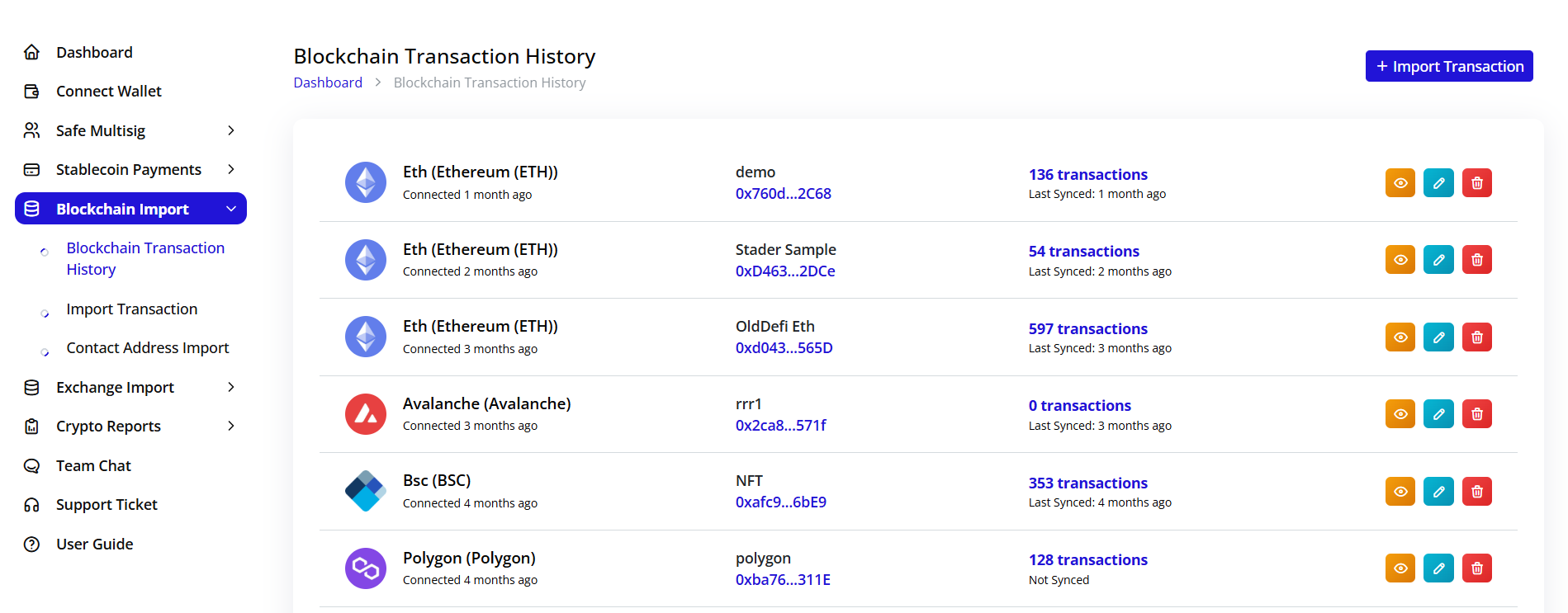
Navigate to Blockchain Import > Blockchain Transaction History to see:
- Blockchain Network: ETH (Ethereum), BSC, Avalanche, Polygon
- Wallet Name: Descriptive identifier
- Account ID: Wallet address
- Transaction Count: Number of synced transactions
- Last Synced: Timestamp of last sync
- Actions:
- View details (eye icon)
- Edit settings (pencil icon)
- Delete connection (trash icon)
Importing Transactions
-
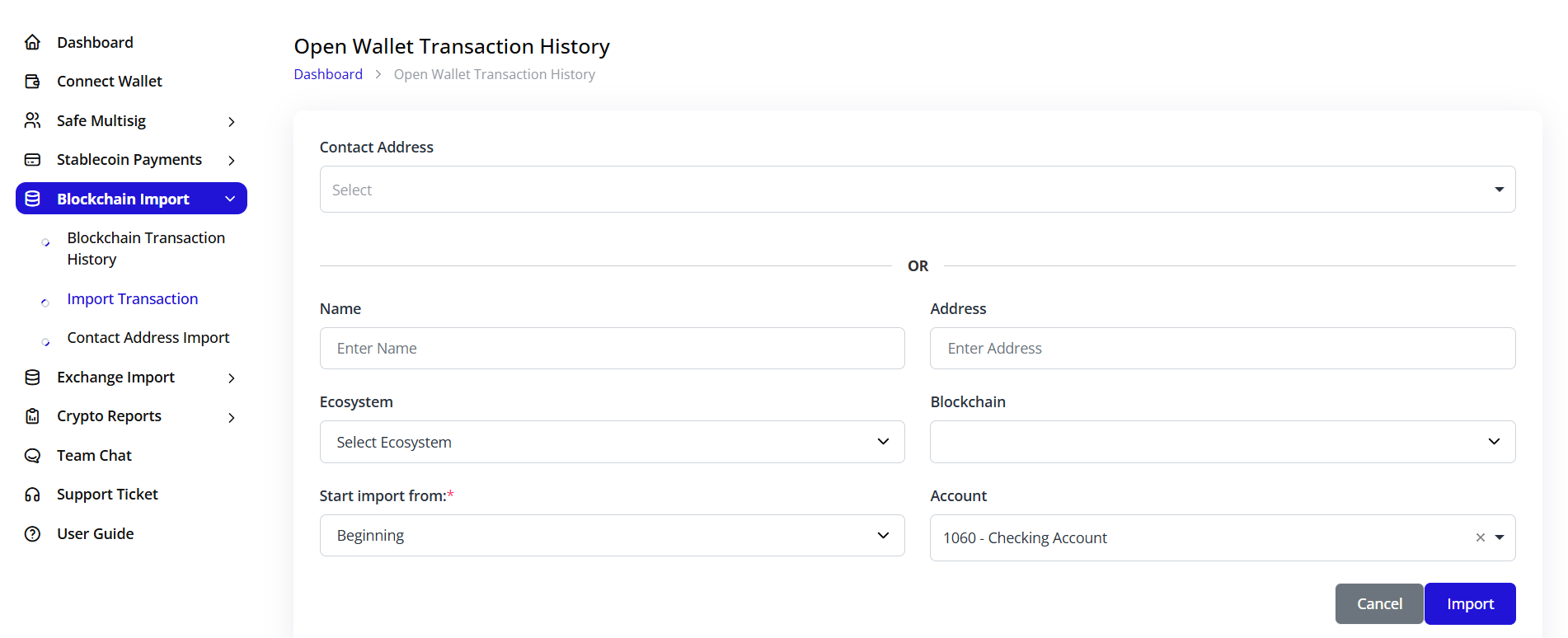
Click + Import Transaction button
-
Enter wallet details:
- Contact Address: Select or enter new
- Name: Wallet identifier
- Address: Blockchain address
- Ecosystem: Choose blockchain network
- Blockchain: Specific chain
- Start import from: Beginning or specific date
- Account: Link to chart of accounts
-
Click Import to begin syncing
Transaction Details
Viewing Transaction History

Click on any wallet to view detailed transactions:
-
Wallet Information:
- Connection date
- Wallet address (clickable link to explorer)
- Blockchain network
-
Sync Status:
- Last synced timestamp
- Manual sync option with "Sync Now" button
Transaction Tabs
1. Transactions Tab
View individual transaction records with:
- Classification status (Unclassified/Classified)
- Transaction date and time
- Contract interactions
- Direction (Sent/Received)
- Token symbols
- Sent/Received amounts
- Token prices in USD
- Spam detection toggle
- Create Entry dropdown for accounting
2. Reports Tab
Access consolidated reports showing:
- Ticker: Token symbol
- Imported Amount: Calculated incoming tokens
- Calculated In: Total received
- Calculated Out: Total sent
- Calculated Fees: Network fees paid
- Calculated Balance: Current holdings
- Price: Current token price
- USD Value: Total value in USD
- Difference: Price variance
3. Rules Tab
Create automation rules for transaction categorization:
- Rule name
- Applicable wallet
- From/To address filters
- Transaction type
- Token filters
- Debit/Credit accounts
- Matched records count
- Status (Active/Inactive)
Creating Accounting Entries
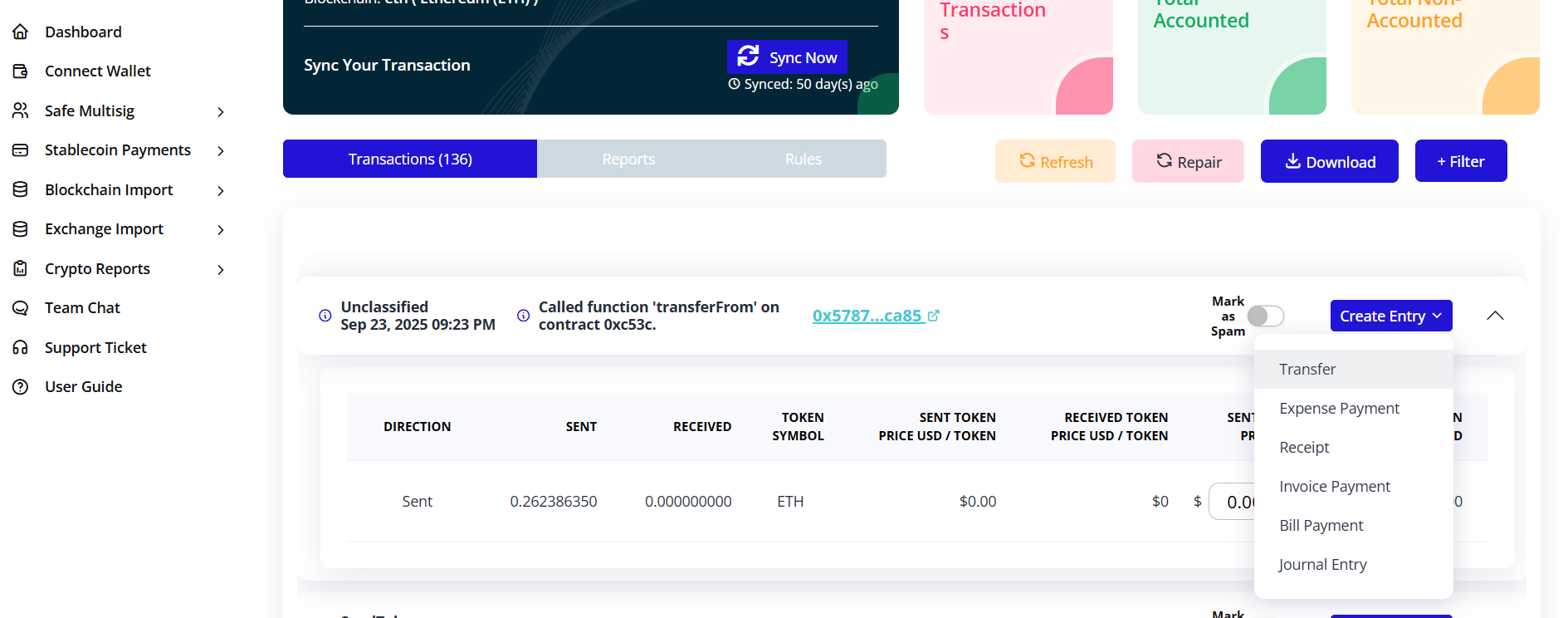
From any transaction, click Create Entry to:
- Invoice Payment: Record customer payments
- Bill Payment: Record vendor bills
- Transfer: Record inter-account transfers
- Journal Entry: Create manual journal entries
Creating Transaction Rules
Rule Configuration
-
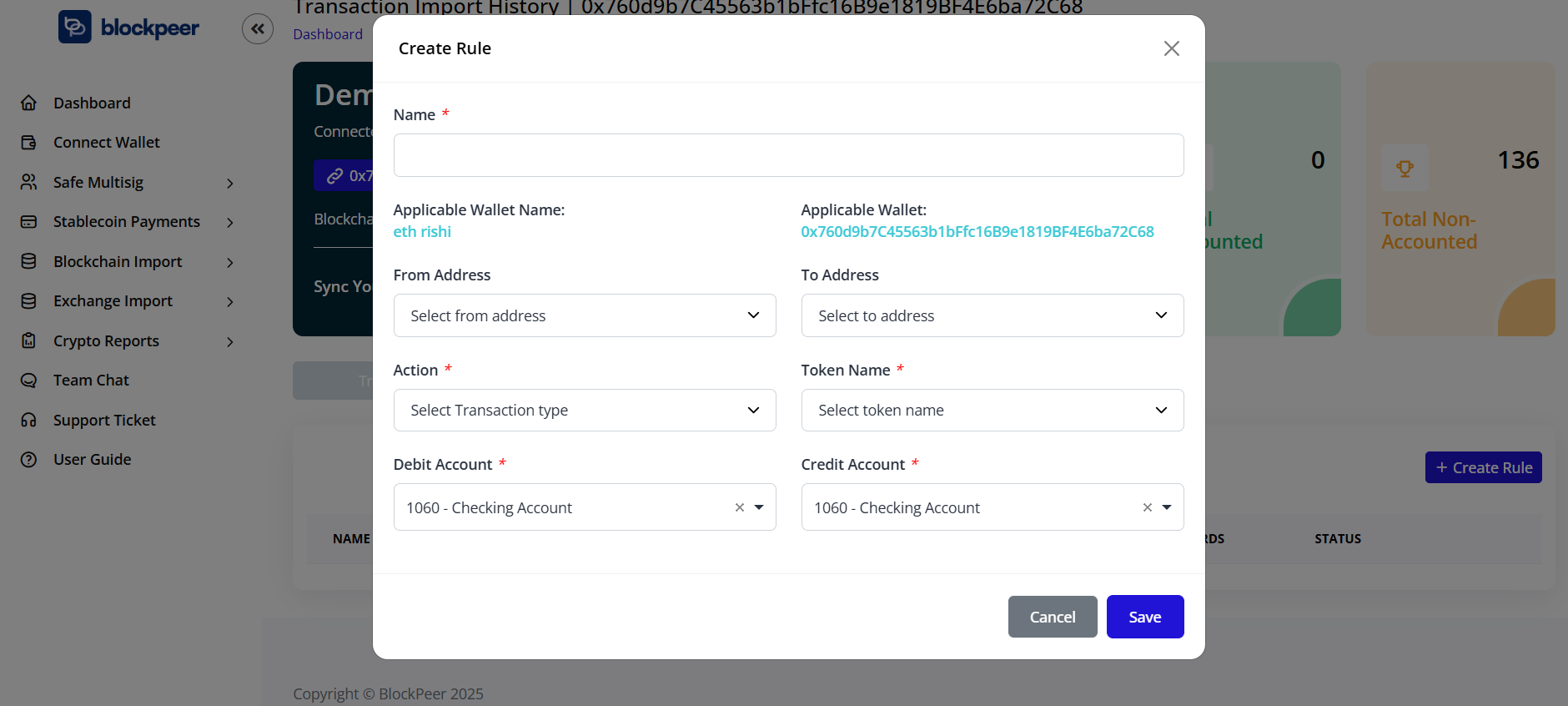
Click + Create Rule on the Rules tab
-
Configure rule parameters:
- Name: Descriptive rule name
- Applicable Wallet Name: Select wallet
- Applicable Wallet: Wallet address (auto-filled)
- From Address: Filter by sender
- To Address: Filter by recipient
- Action: Transaction type (Transfer, Swap, etc.)
- Token Name: Specific token filter
- Debit Account: Chart of accounts mapping
- Credit Account: Chart of accounts mapping
-
Click Save to activate the rule
Rule Benefits
- Automatic transaction categorization
- Bulk processing of similar transactions
- Consistent accounting treatment
- Reduced manual entry errors